This article outlines steps to send an email from another alias associated with your account
How to add a new Alias
-
In Gmail.com, open your settings from the Settings Cog in the top right corner of the app, or navigate directly to this url.

-
Navigate to the Accounts Tab
-
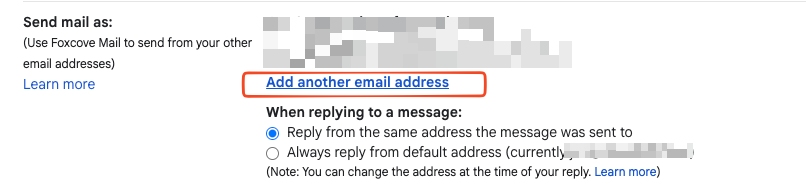
Under “Send mail as” select “add another email address”
-
This should be an address that you already have access to - whether it is an alias for your own account, or another email you are allowed to send from - such as a google group
-
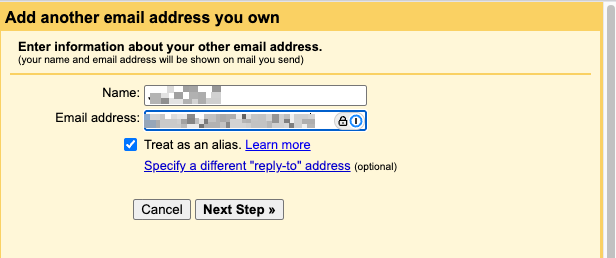
A new window will pop up asking for other information on the new alias you want to add
-
-
Fill in the details required
-
If you want the email to show up as an alias associated with your account, keep “Treat as an alias” checked
-
If you want the email to be seen as separate from your account, uncheck the box
-
-
You will be prompted to verify the alias if you are using another email address (such as security@foxcoveit.com) through the new email address before you are able to send as that account
-
Once confirmed, you now should see the new options to send mail from different addresses available
-
Optionally, choose which account sends replies from your email by default

How to send from a new Alias
Now that your account has additional aliases available to send from, you can start sending mail from a different address.
-
Compose a new email
-
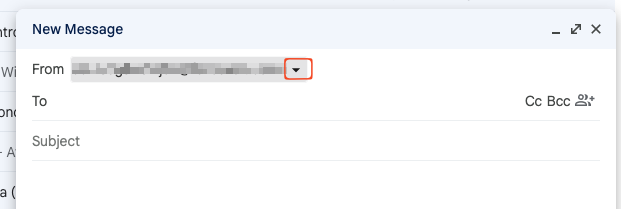
In the “From” Section, you should see a black arrow pointing down next to your name, this will open and give you options available to send from
-
-
Select the desired email address and continue to compose the email.
-
Once sent, you’ll see that your email was sent from the new alias you’ve set up!