
Prerequisites:
-
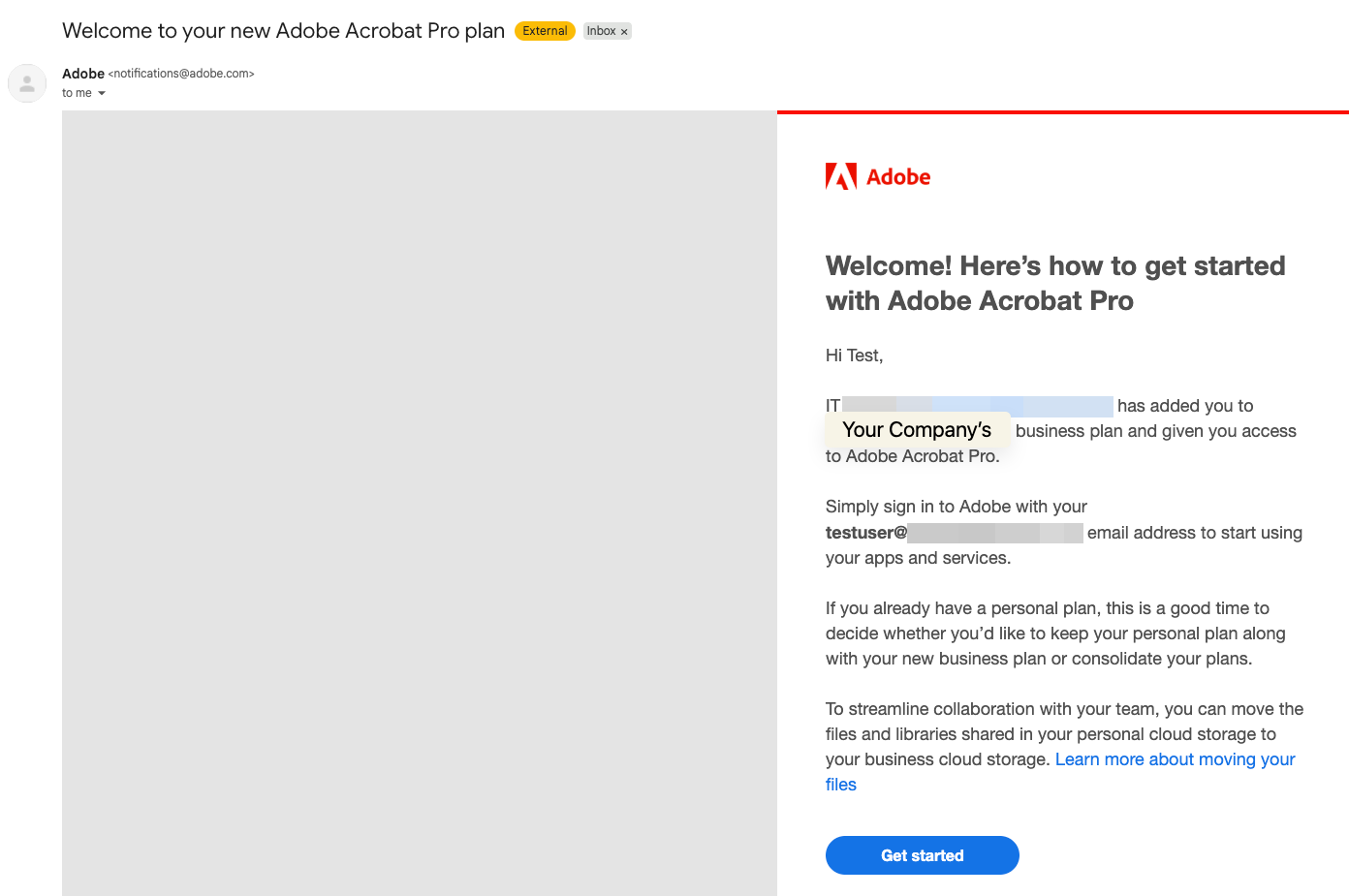
It’s much easier to setup your Adobe account prior to installing Creative Cloud, if you were assigned a license, there should be an email invitation to your company’s Adobe account. Setup a personal password for your account and then continue to install the Creative Cloud.
Installation Process
-
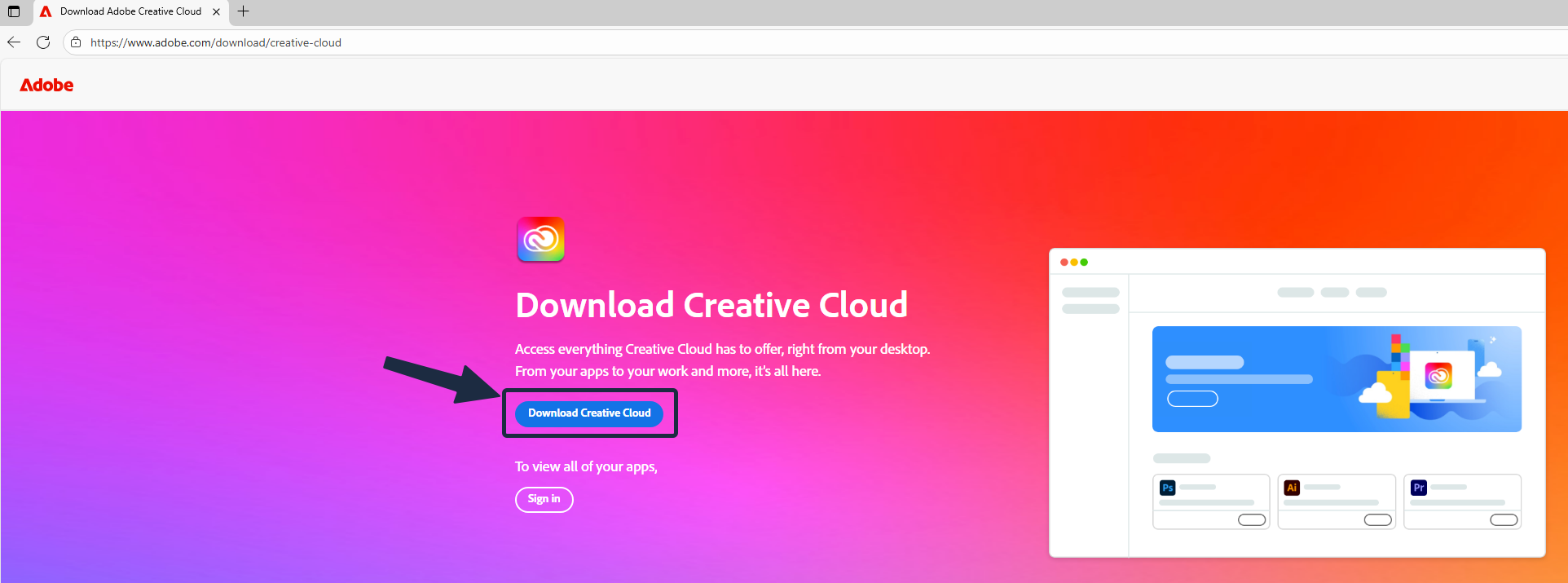
Go to https://www.adobe.com/download/creative-cloud and click on the “Download Creative Cloud” button
-
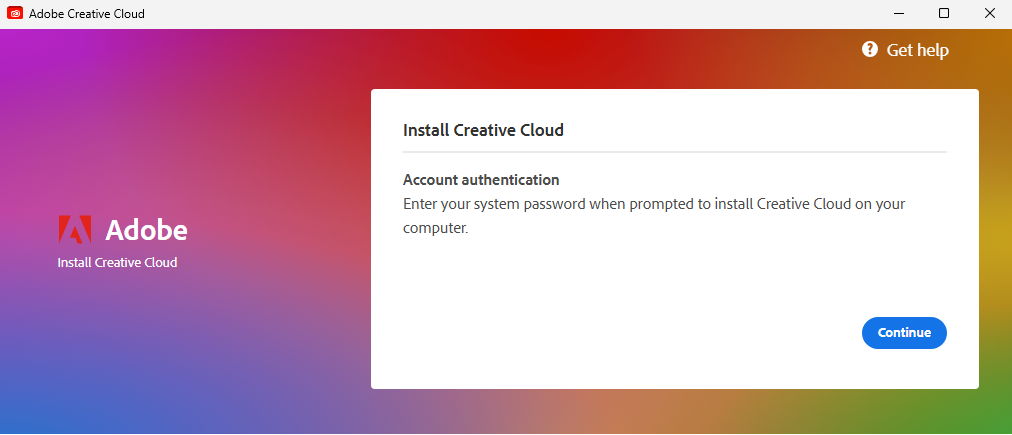
Run and install the Creative Cloud setup from your downloads. Input your computer password if asked and press “Yes” to allow the app to make changes to your device.
-
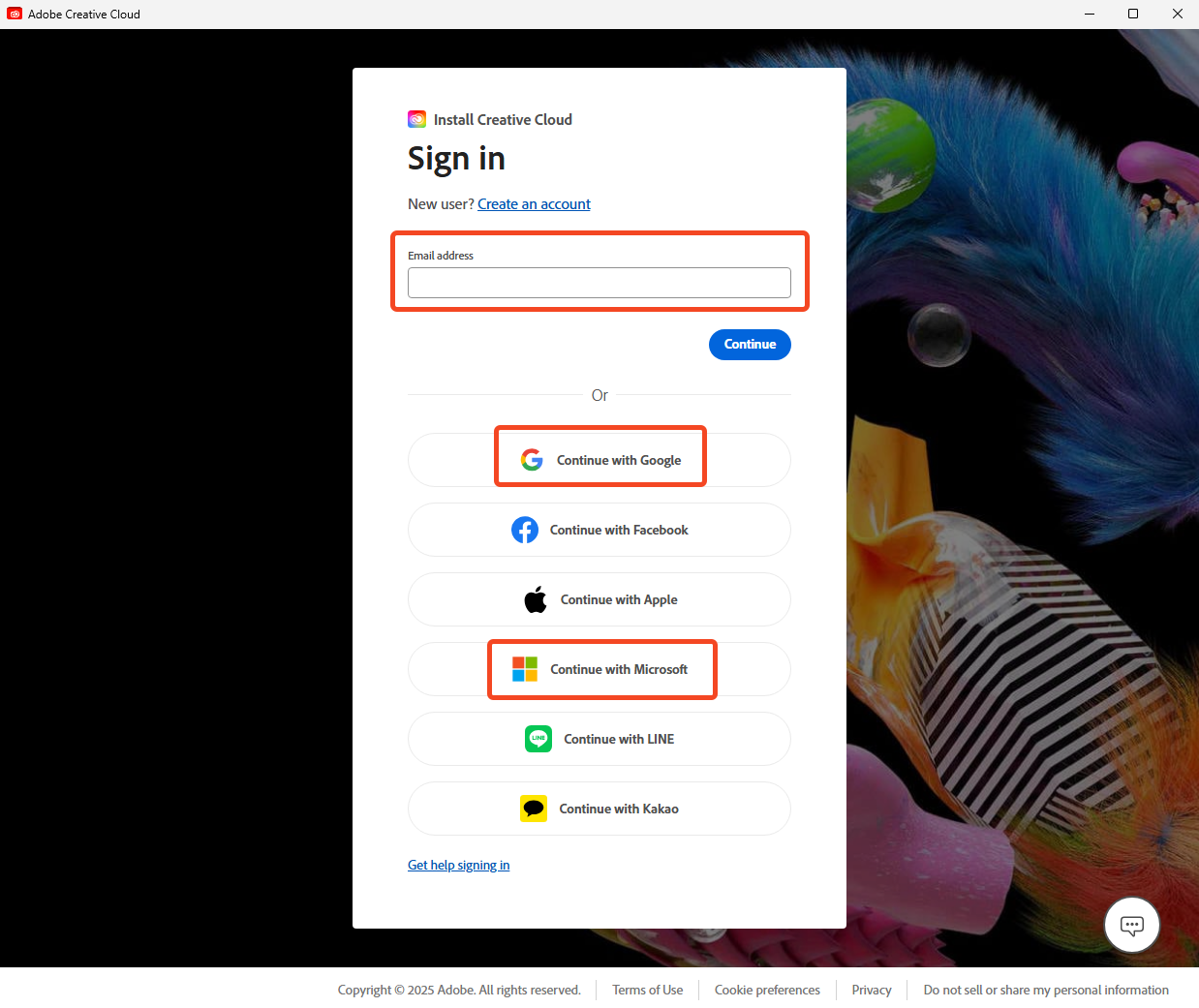
Sign in with your company email address and password. You can reset the password yourself if you don’t know it. You can also sign in via SSO using your Google or Microsoft account. IT will notify you if use SSO.
-
No need to add a secondary email address. Select “Not Now”
-
-
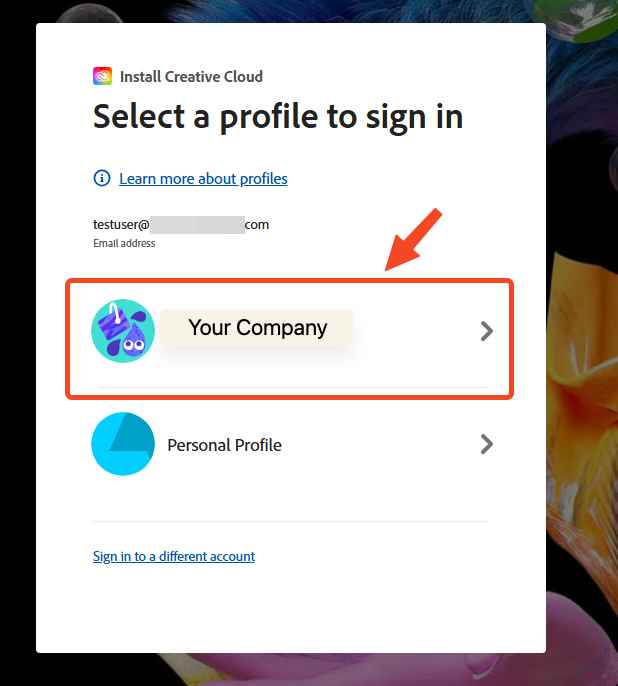
Select your Company account, NOT your Personal Profile
-
Let the installation finish

-
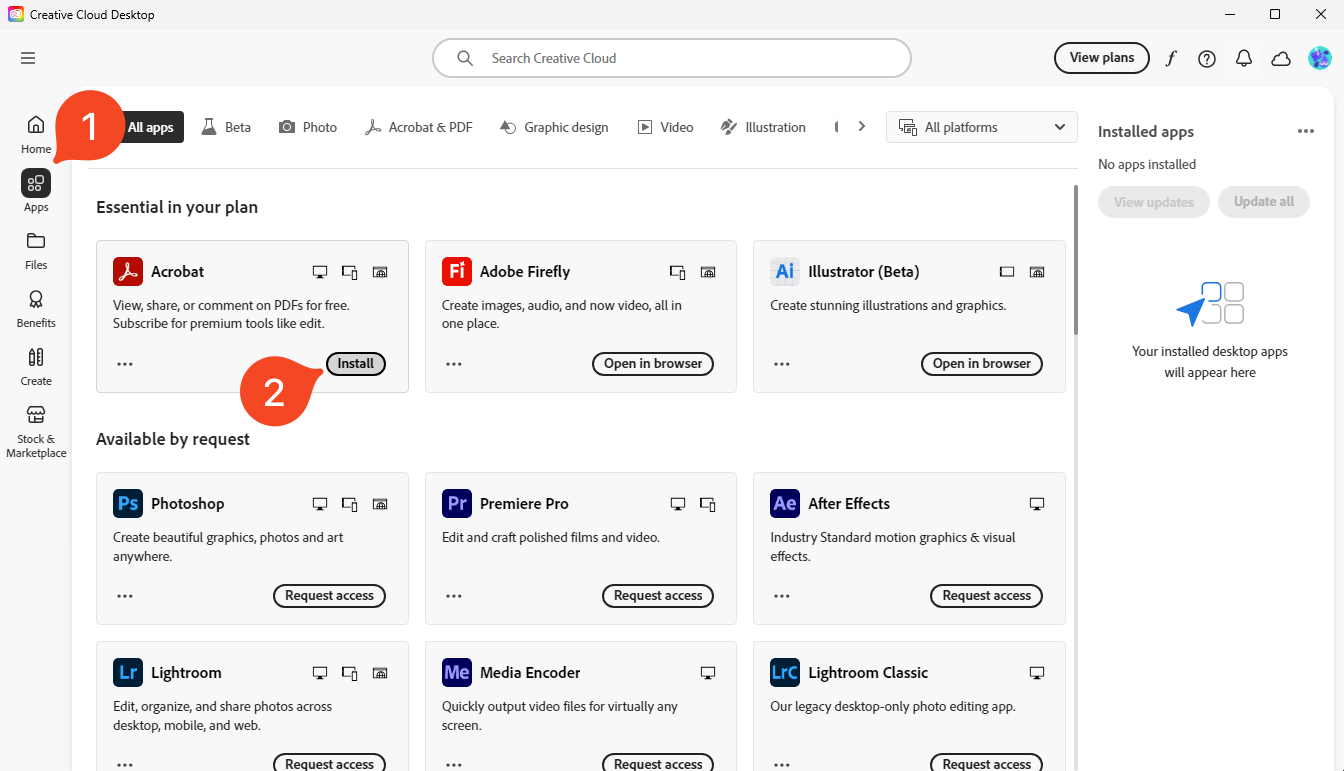
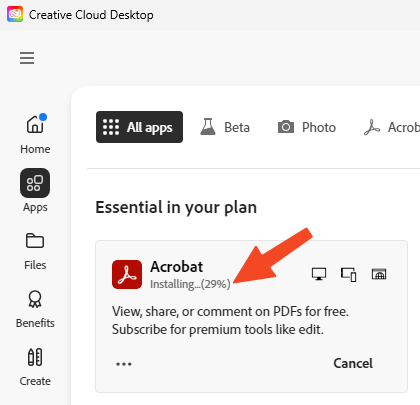
Creative Cloud should open when finished installing. Go to “Apps” (1) on the side and the click on “Install” (2) for Acrobat or any other Adobe app you need installed. Wait for the installation to finish.
-
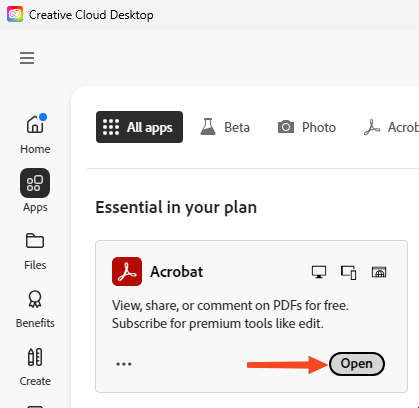
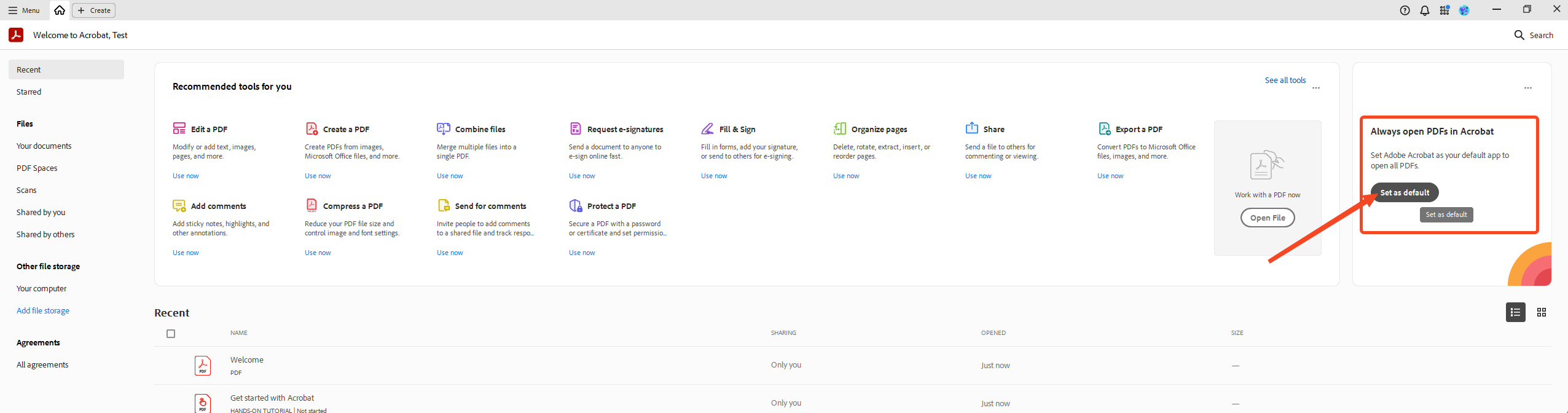
Open Acrobat and set it as your default PDF viewer once opened on the right side.
-
You should be all set at this point. Let IT know if you have any issues with installation or your account.