
This article outlines steps to set up a 1Password entry with your login credentials to be used for Multi-Factor Authentication (MFA) prompts. This allows for a seamless login process using the browser extension - as well as reduces the number of authentication apps needed for security.
For more information on items not listed here - see this reference
Set up New Authentication Method for Account Entry
-
Ensure your credentials are saved in 1Password for whichever application you are setting up MFA for
-
Navigate to the application settings where you are able to set up your authentication
-
Before you can use 1Password as an authenticator, you’ll need to set up two-factor authentication for a website:
-
Search 2fa.directory for the website
-
Click
-
Follow the instructions the website provides.
-
-
When you see a QR code to scan or a string of characters to copy, continue with the next steps.
-
-
When you are prompted to scan the QR code to set up authentication, there are a few methods to scan and set up your account.
Quickly scan QR code and copy Verification code to clipboard
This requires having the 1Password extension installed and logged in
-
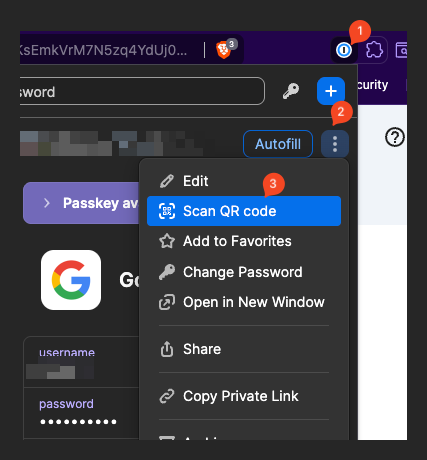
Where you are prompted to scan the QR code, find the 1Password entry in the extension by clicking the 1Password icon
-
Select the 3 dots and then choose “Scan QR Code”
-
This should automatically add a new field in your 1Password entry for the verification code it is generating. It will also be automatically copied to your clipboard so you can paste the code directly in the verification setup
On a Desktop
-
Open and unlock 1Password.
-
Select the Login item for the website, then click Edit.
-
Click Add More, then choose One-Time Password.
-
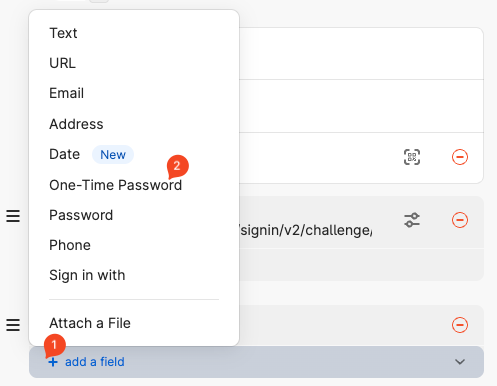
You may need to scroll down to see these options.
-
-
Click the QR code to scan the QR code from your screen or clipboard. If you can’t scan the QR code, most sites will give you a string of characters you can copy and paste instead.
-
Click Save.
-
You will now see the automatically generated verification codes under your username and password - when autofilling in browsers or applications that allow for it, you will automatically see the username, password, AND MFA code autofill for you. No additional apps needed.