This article outlines the process to share a mailbox, access a shared mailbox, and remove the shared mailbox from your Outlook account.
Please note - the new version of Outlook for PC has a similar interface to the web app. If you are not using the new version of Outlook, you should follow the instructions for Outlook (Classic) on PC.
Share a mailbox folder with someone else
Outlook Web App
-
Find the folder you want to share with someone
-
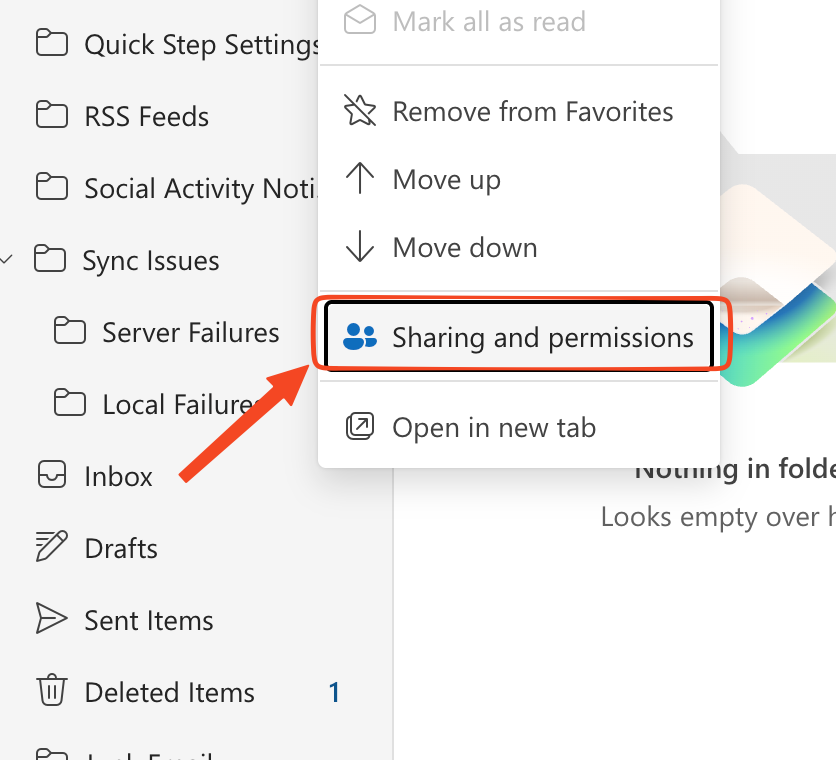
Right click on the folder > sharing permissions
-
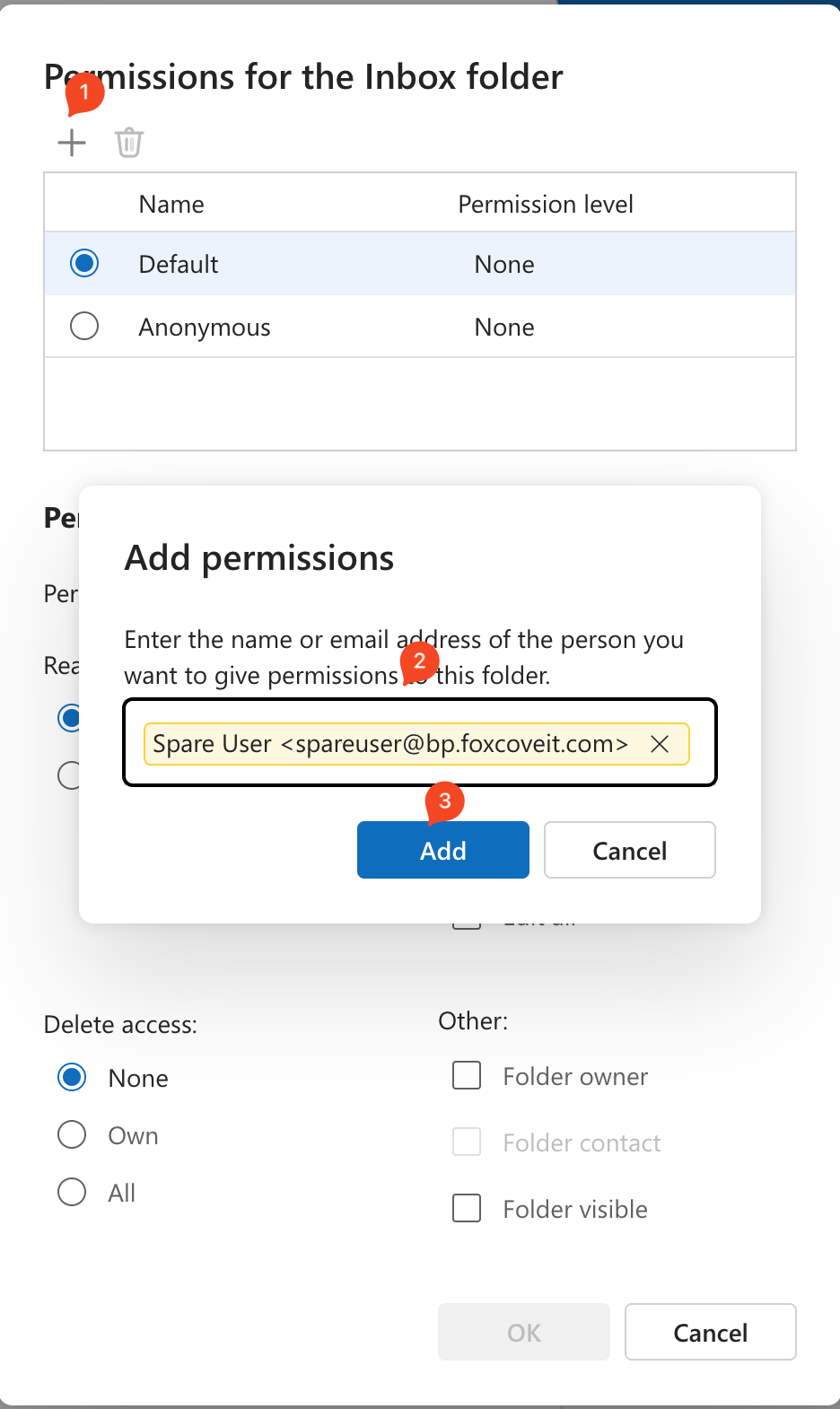
Click the '+' to add a new user, and input their email address
-
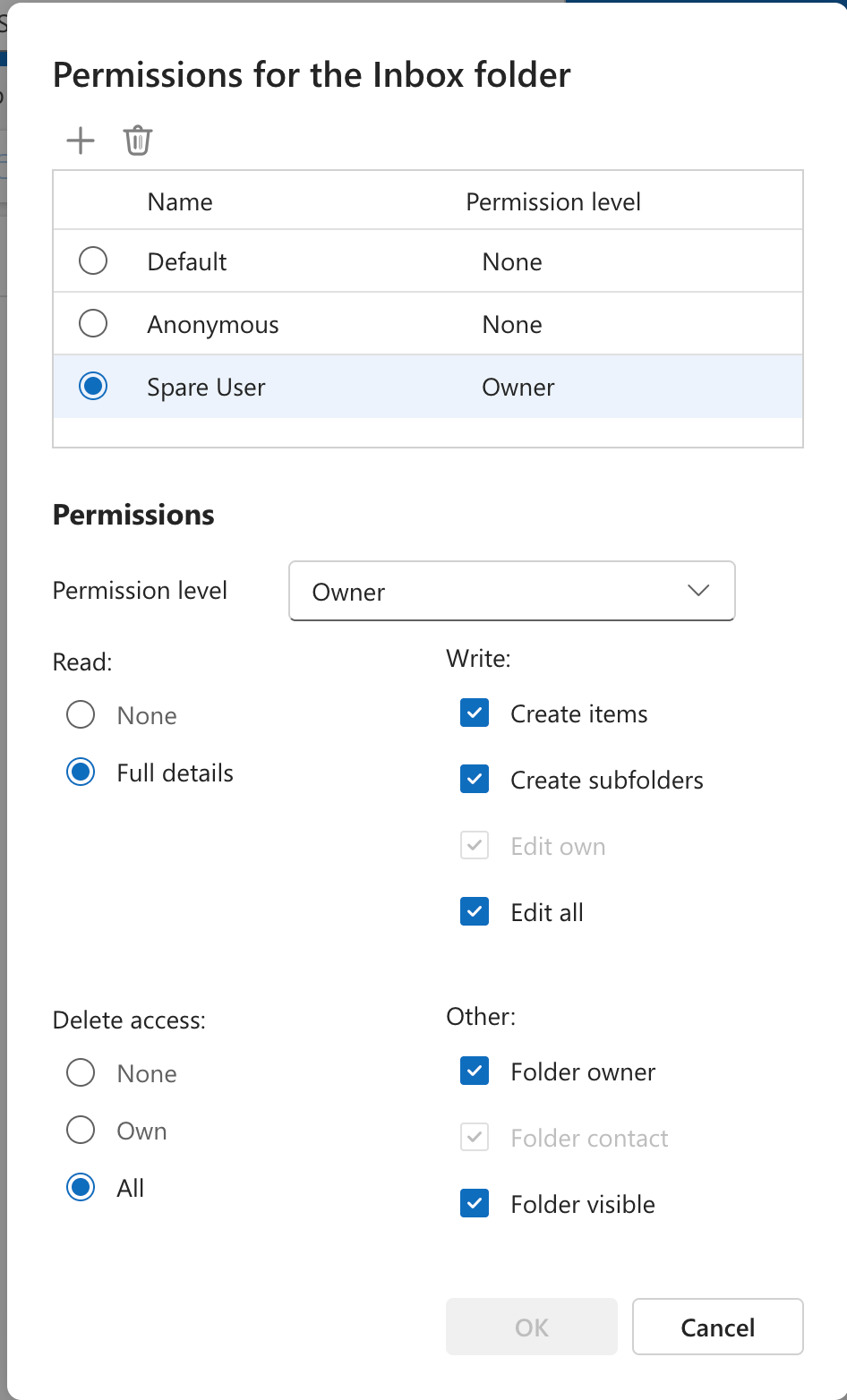
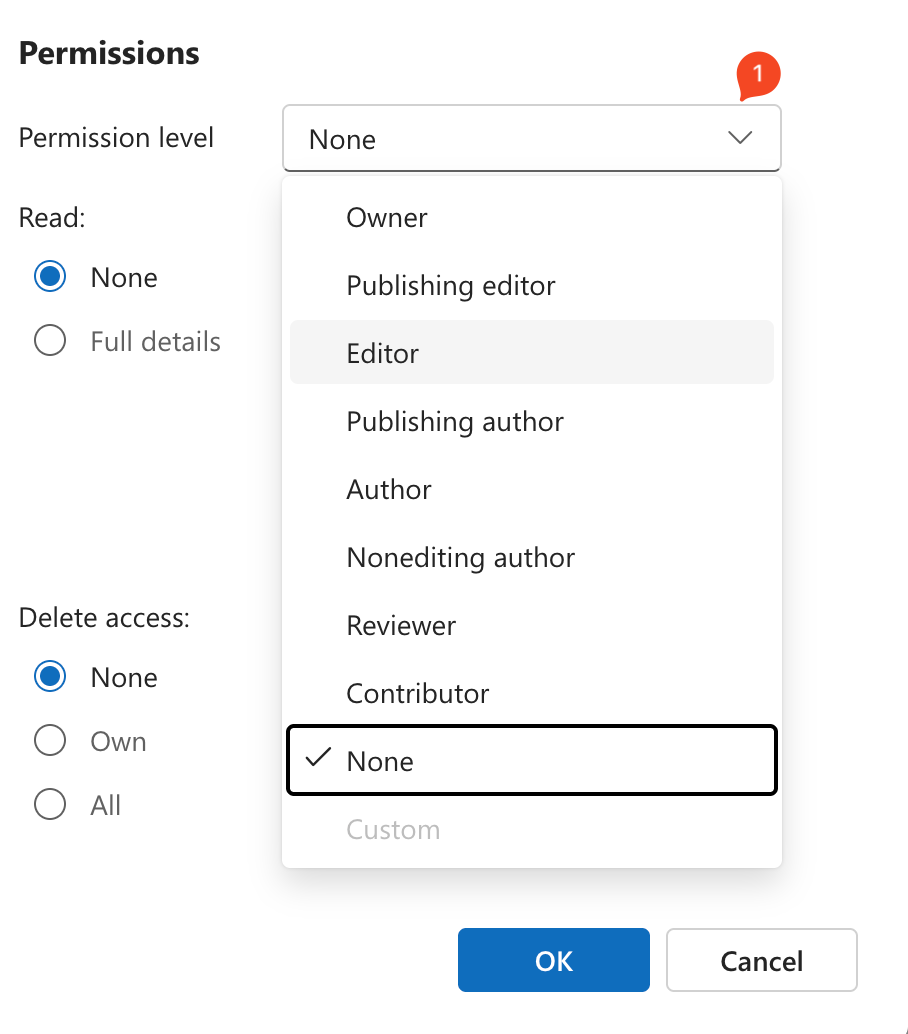
With their account selected, you can choose from pre-existing roles, or adjust the access as needed
|
|
-
Click OK to complete
To remove access, follow the same instructions - except with the account selected that you want to remove permissions for - choose the Trash Icon
Outlook Classic - PC
-
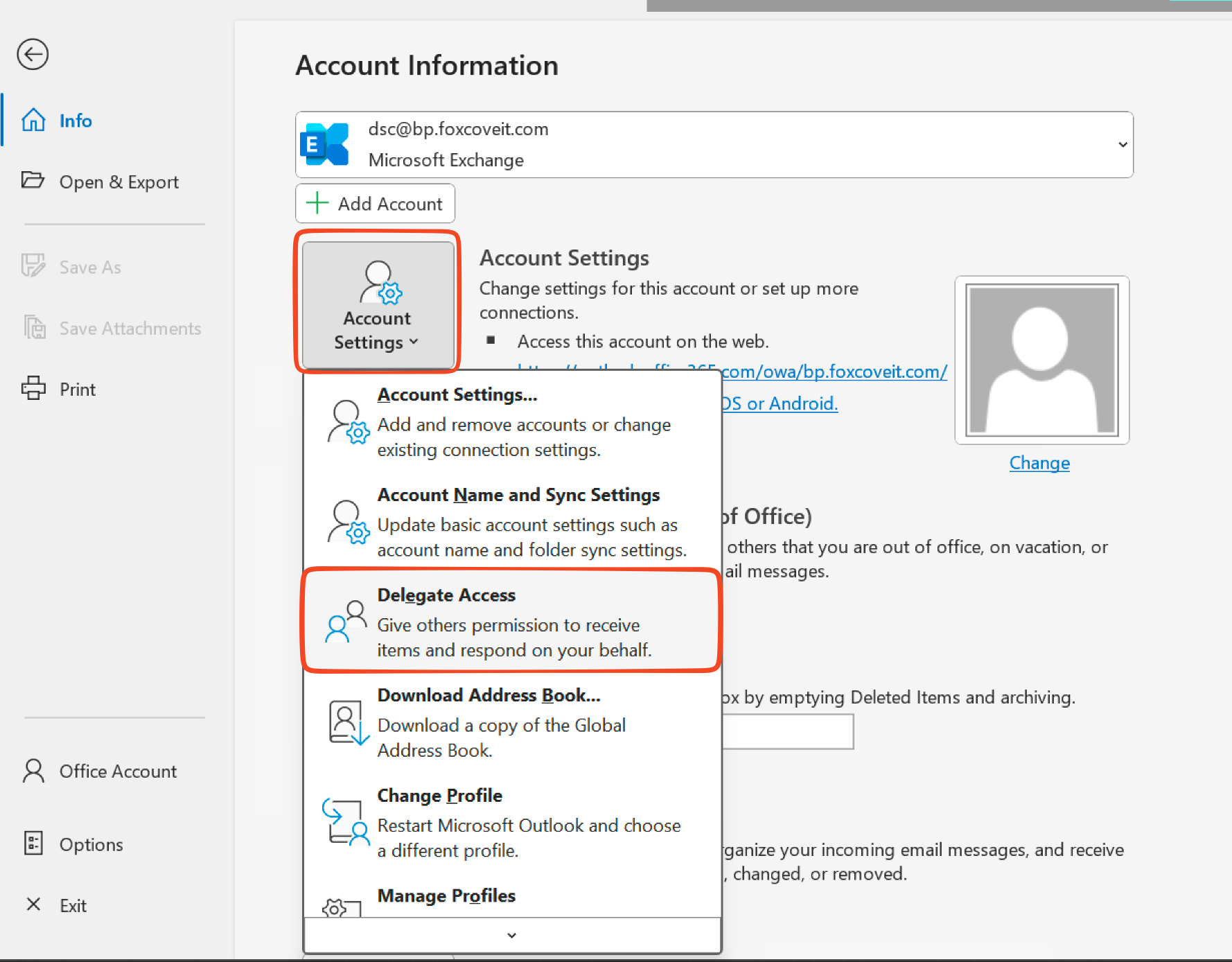
With Outlook open, go to File > Account Settings > Delegate Access
-
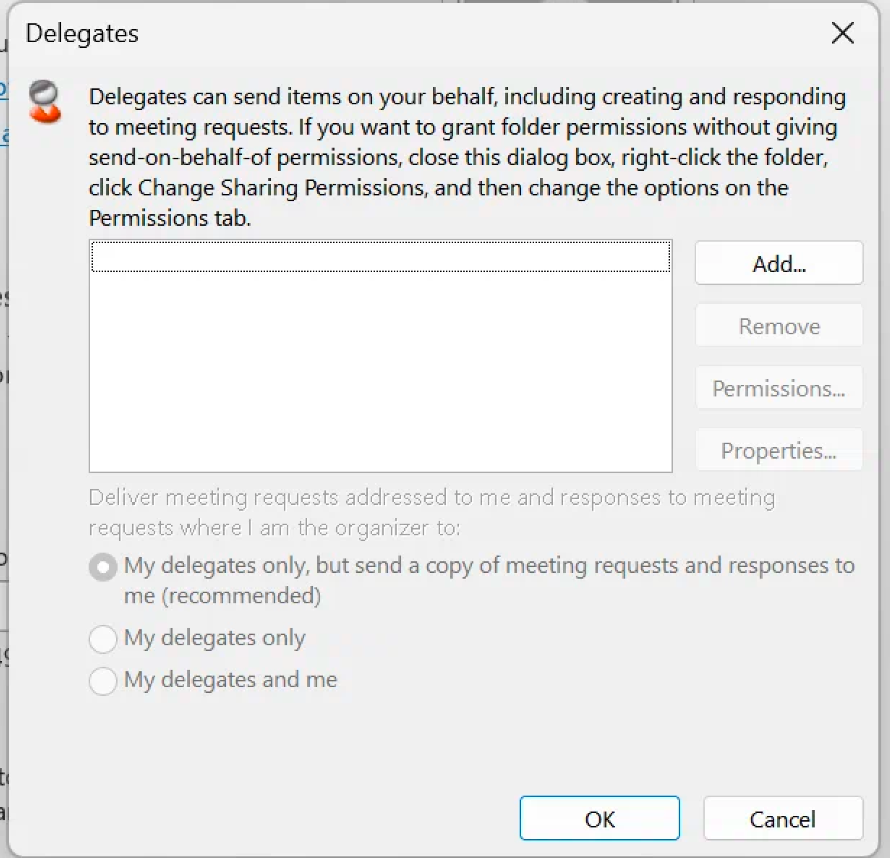
In the new pop up, you will see options to add or remove existing delegates
-
Add a delegate by selecting their email address - you can adjust the per-delegate permissions once you’ve added the user.
Outlook for Mac
-
Find the folder you want to share with someone
-
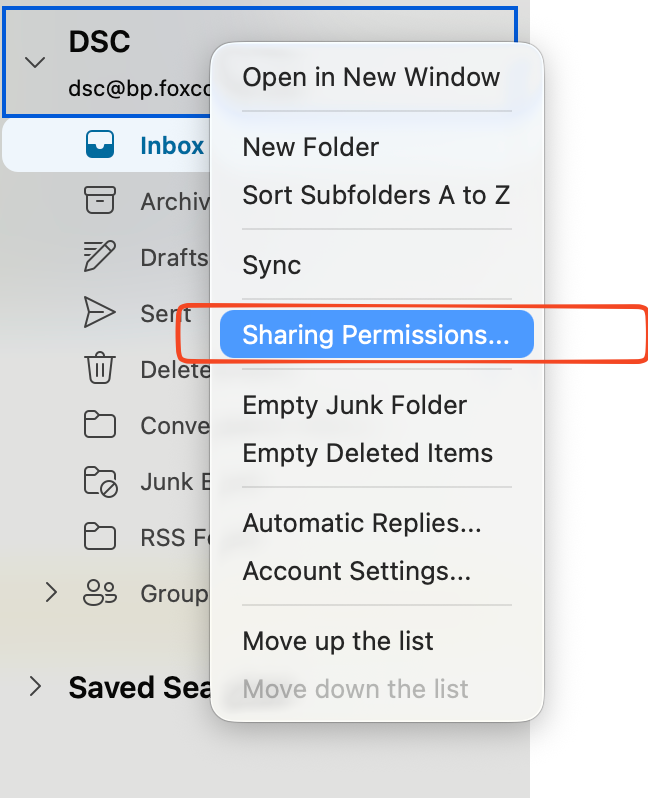
Right click on the folder > sharing permissions
-
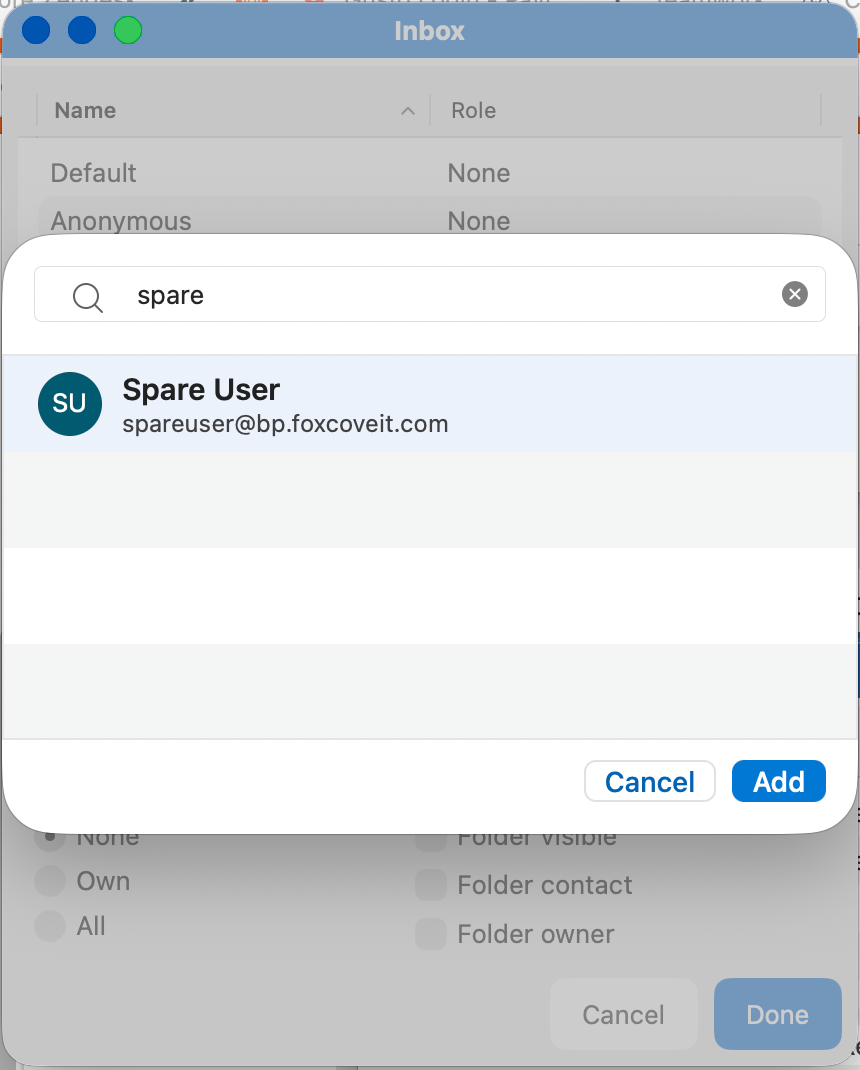
Click “Add User” and input their email address
-
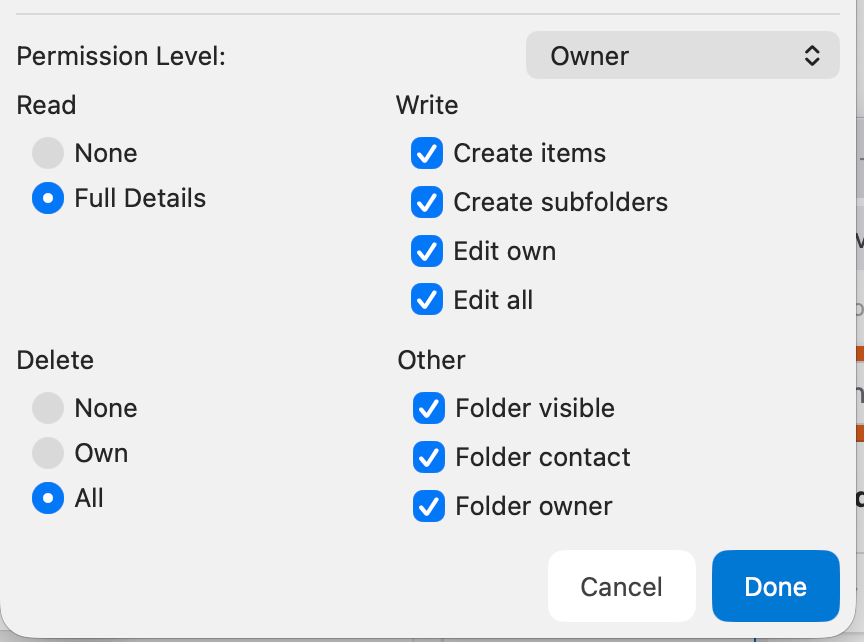
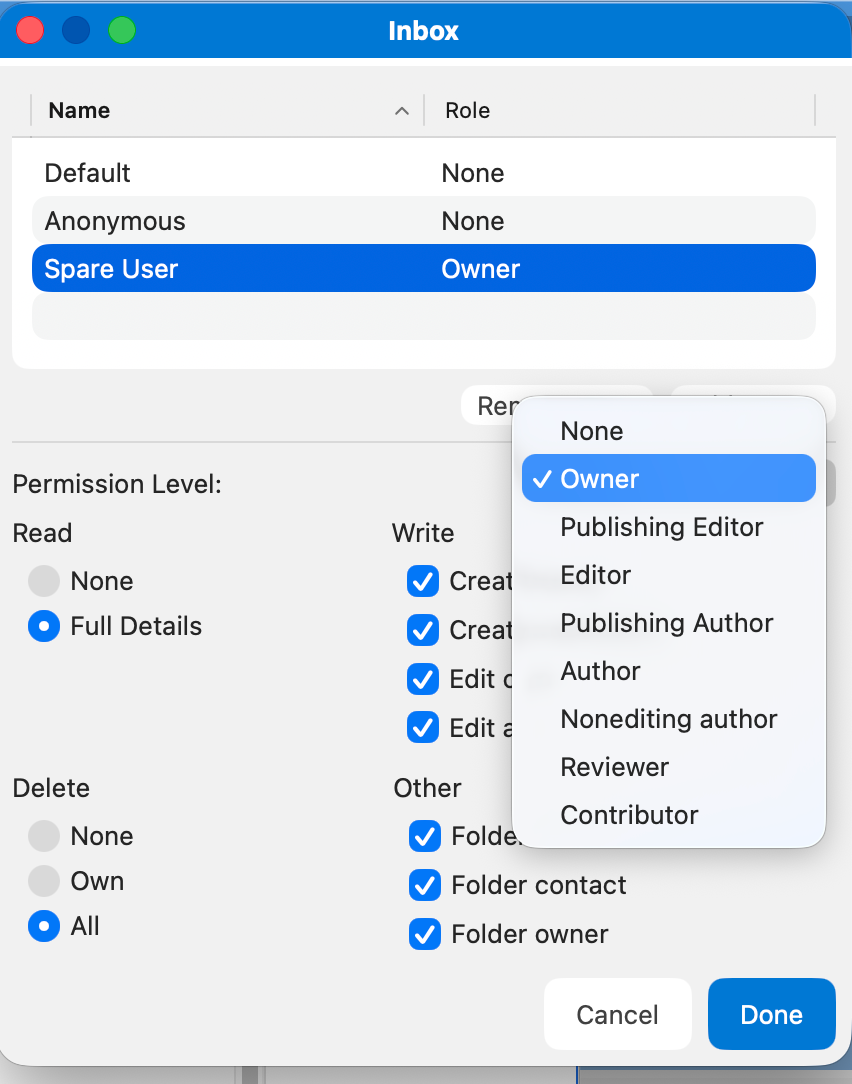
With their account selected, you can choose from pre-existing roles, or adjust the roles as needed
-
Click Done to complete
To revert these changes, you can remove access by changing their permissions to “none” or “Remove User”
|
|
Add a Shared Mailbox to your Outlook Sidebar
Outlook Web App
If you want to monitor the email from your primary mailbox and the shared mailbox at the same time, use this method. After you complete this task, the shared mailbox and its folders are displayed in the left navigation pane each time you open Outlook on the web.
-
Sign in to your account in Outlook on the web.
-
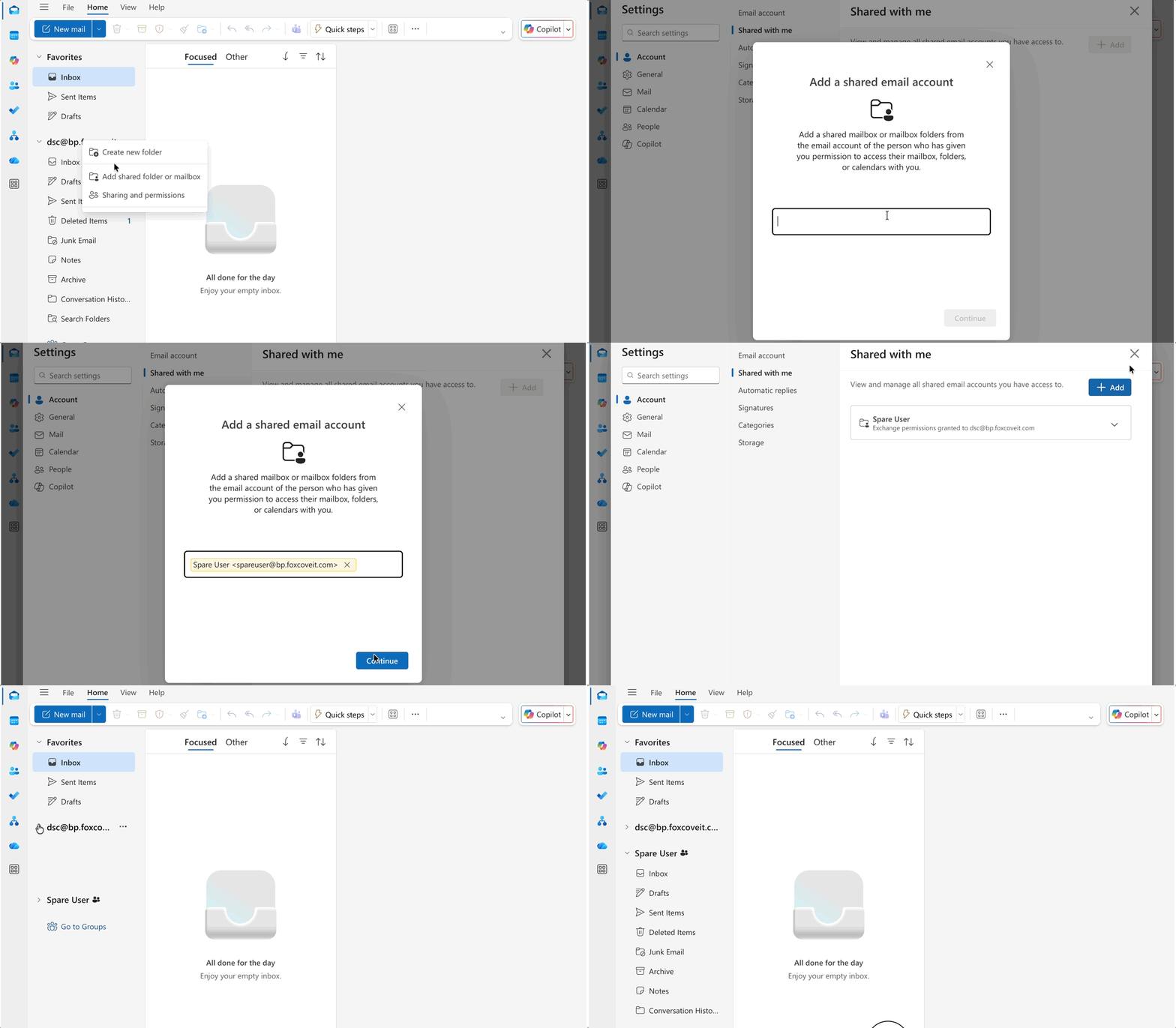
For Exchange Online mailboxes, right click the name of your account in the left navigation pane, and then choose Add shared folder or mailbox.
-
In the Add shared folder dialog box, type the name or email address of someone who has shared a mailbox with you, and then click Add. Or, type the name of the shared mailbox you are a member of, such as info@foxcoveit.com.
-
The shared mailbox displays in your Folder list in Outlook on the web. You can expand or collapse the shared mailbox folders as you can with your primary mailbox. You also can remove the shared mailbox from your Folder list. To remove it, right-click the shared mailbox, and then click Remove shared folder.
Outlook Classic - PC
If your admin only recently added you to a shared mailbox, it may take a few minutes before the shared mailbox appears. Wait a bit and then close and restart Outlook again.
If that didn't work, then manually add the shared mailbox to Outlook:
-
Open Outlook.
-
Choose the File tab in the ribbon.
-
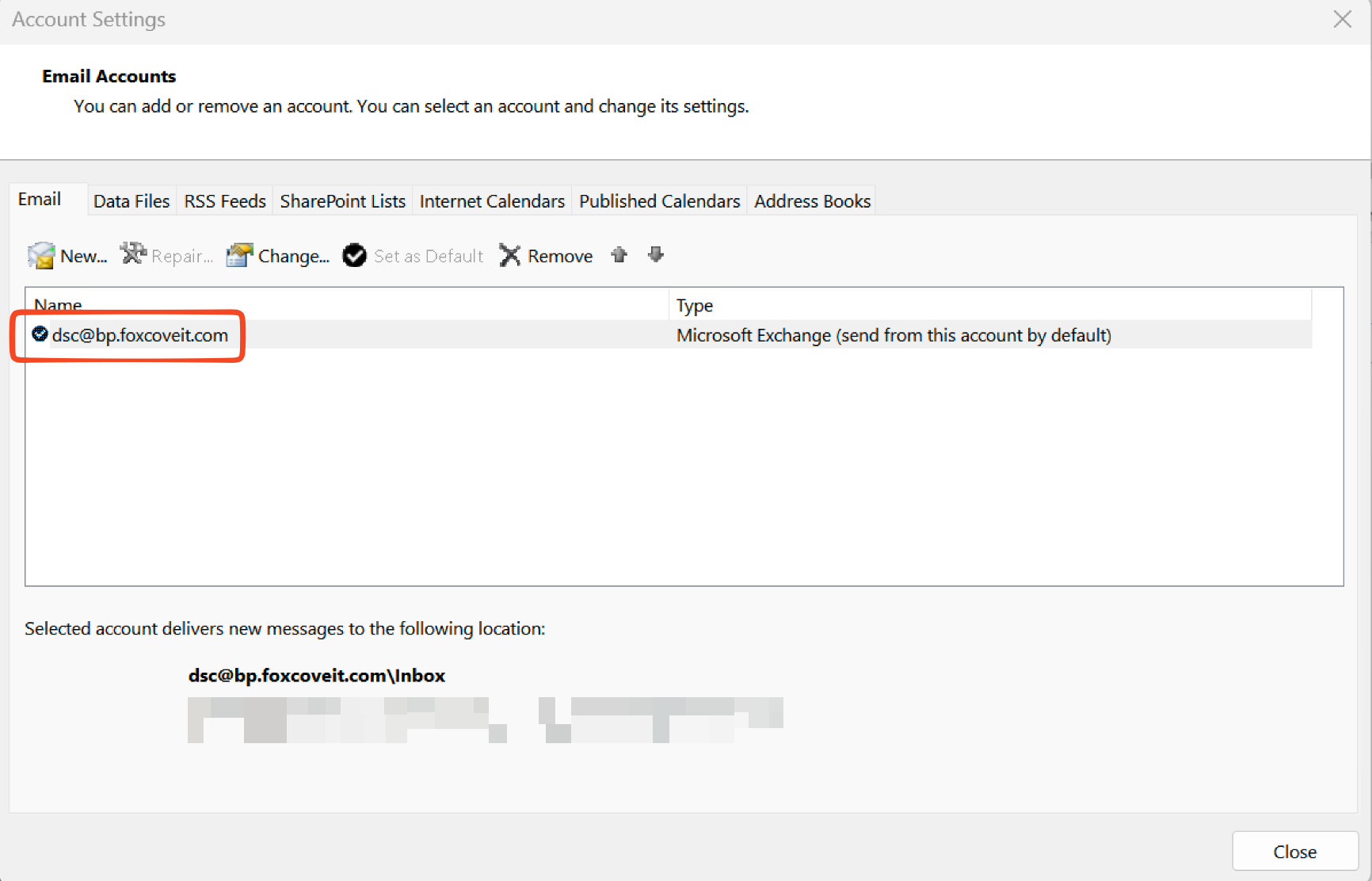
Choose Account Settings, then select Account Settings from the menu. Select the Email tab.
-
Double Click the account name to open the menu
-
-
Choose More Settings
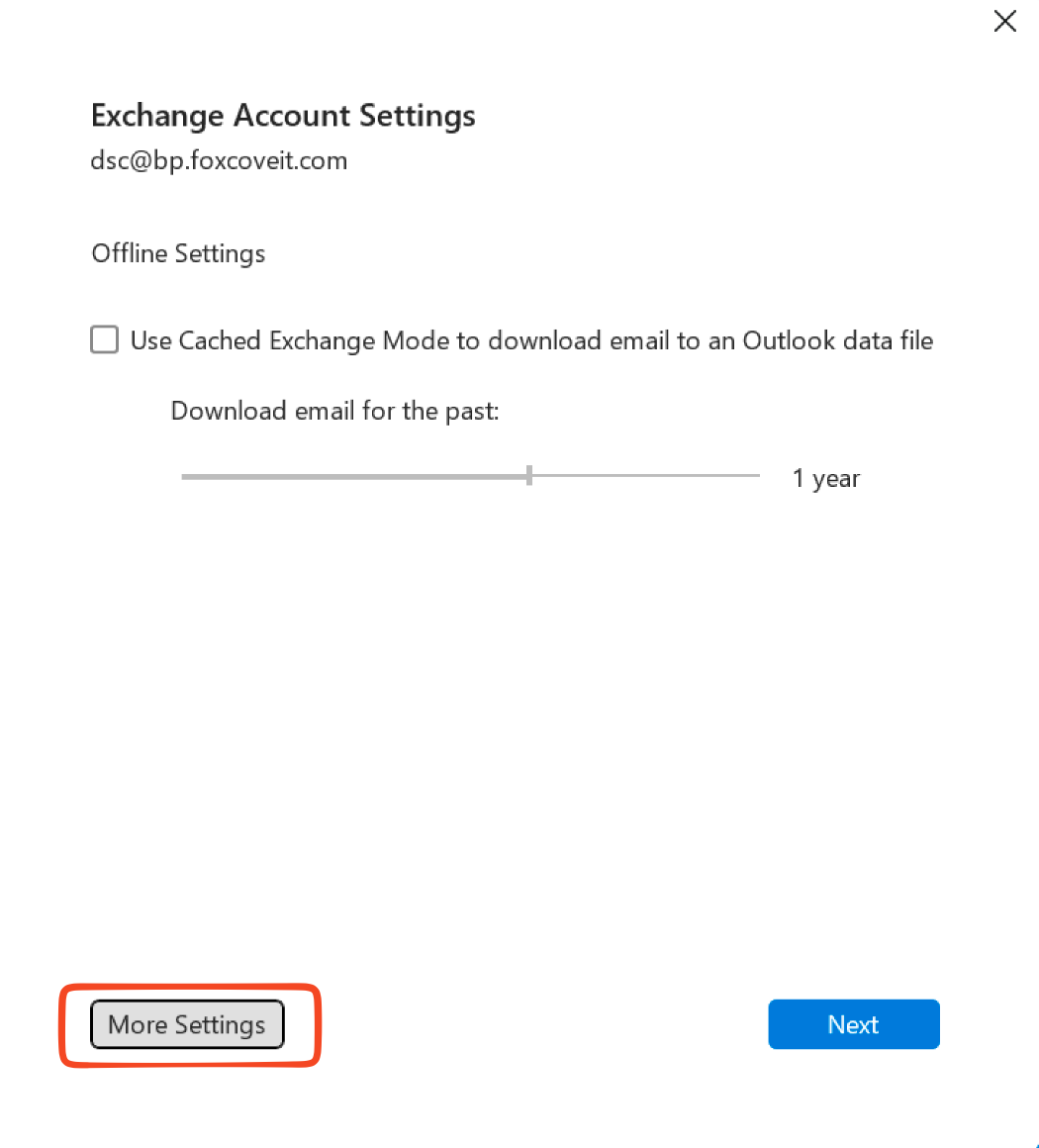
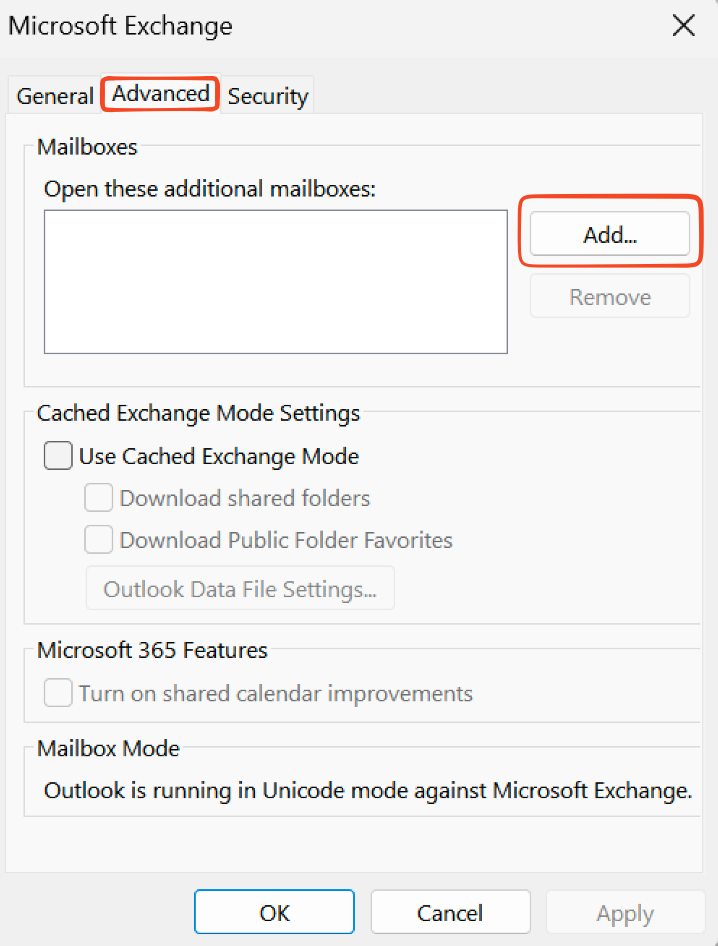
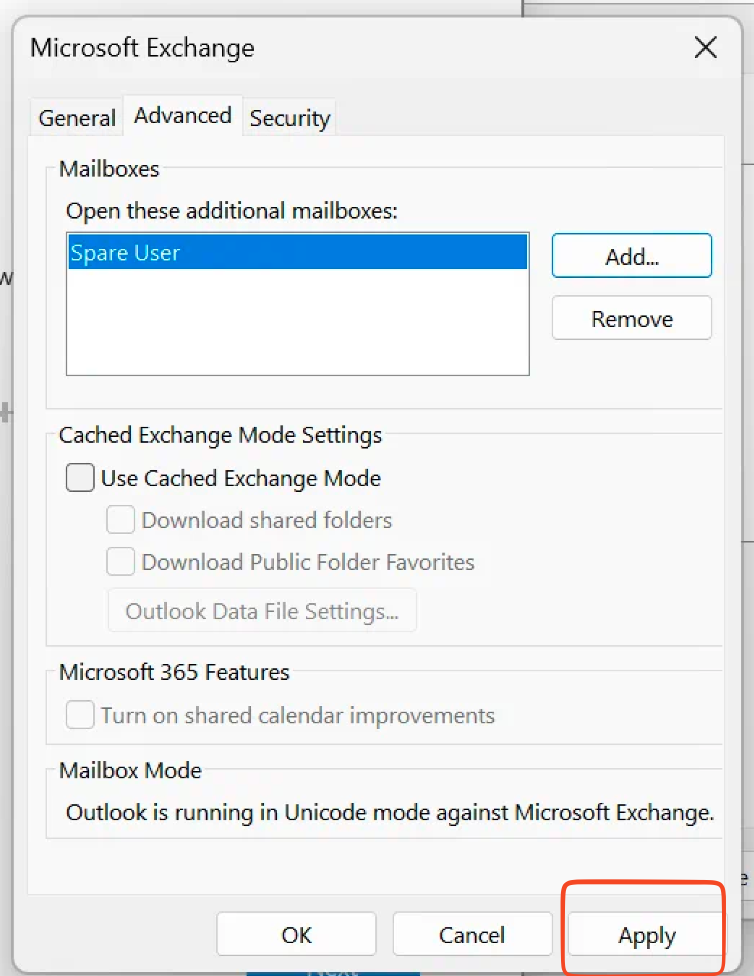
> Advanced > Add.
-
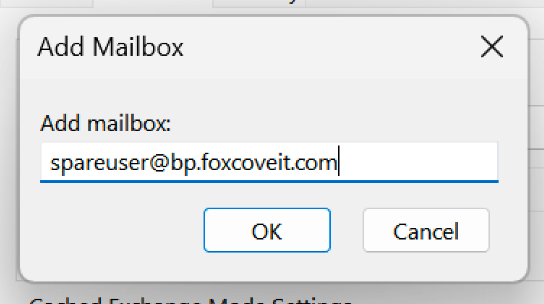
Type the shared email address, such as info@foxcoveit.com.
-
Choose OK to close this window
-
Click Apply > OK
-
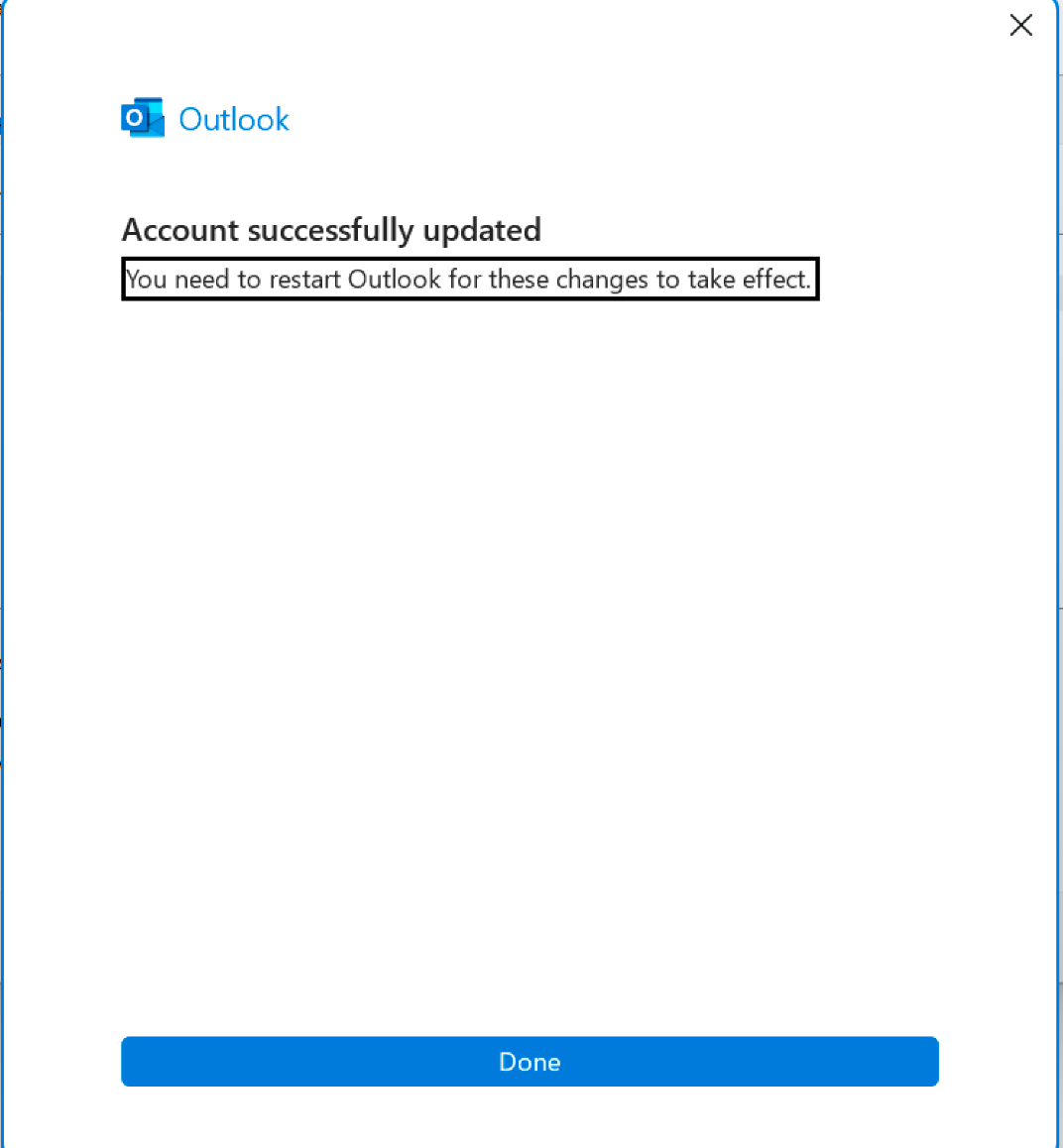
Choose Next > Finish and Close
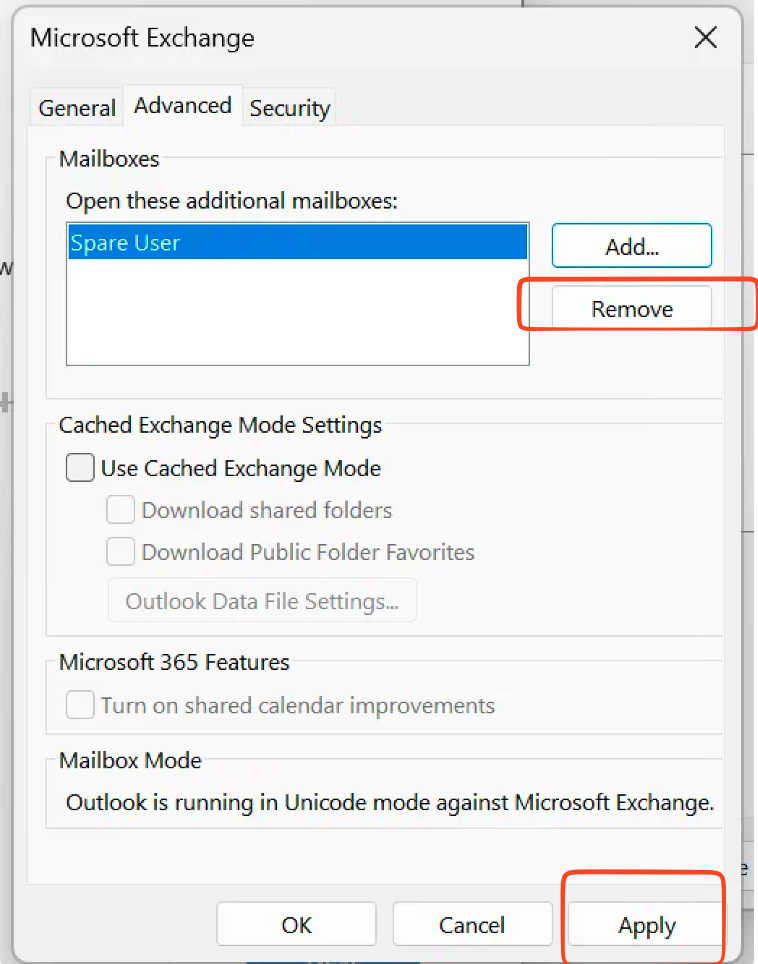
To remove the Shared Folder, repeat the steps above except you’ll select the email address to be removed and choose “Remove”
Outlook for Mac
-
Open Outlook
-
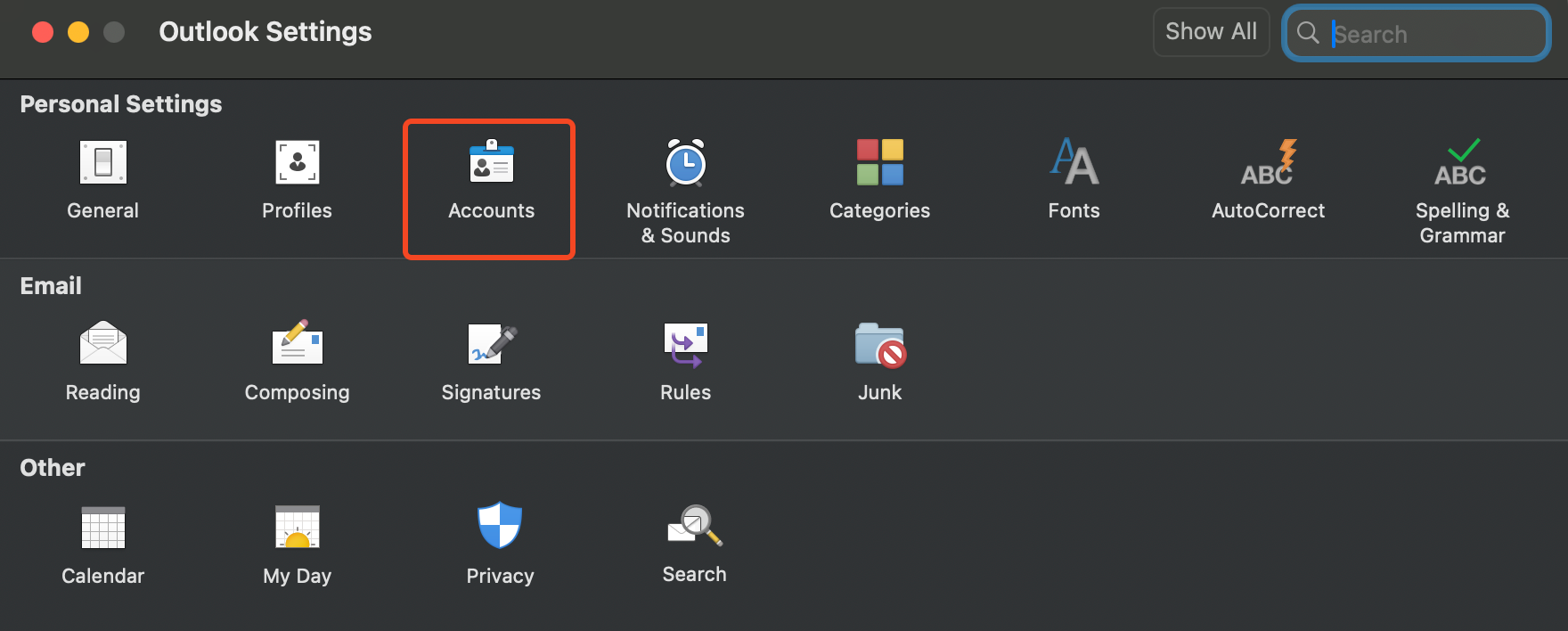
Navigate to the Outlook Settings (⌘ + ,)
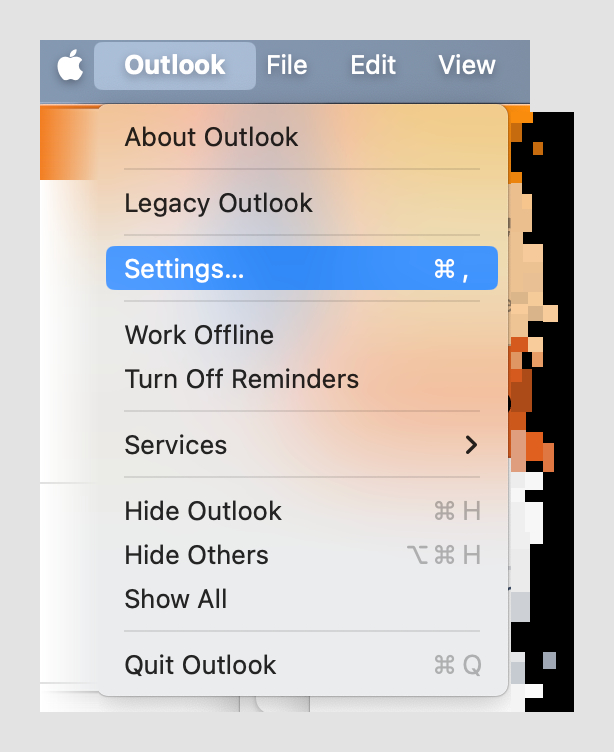
and choose “Accounts”
-
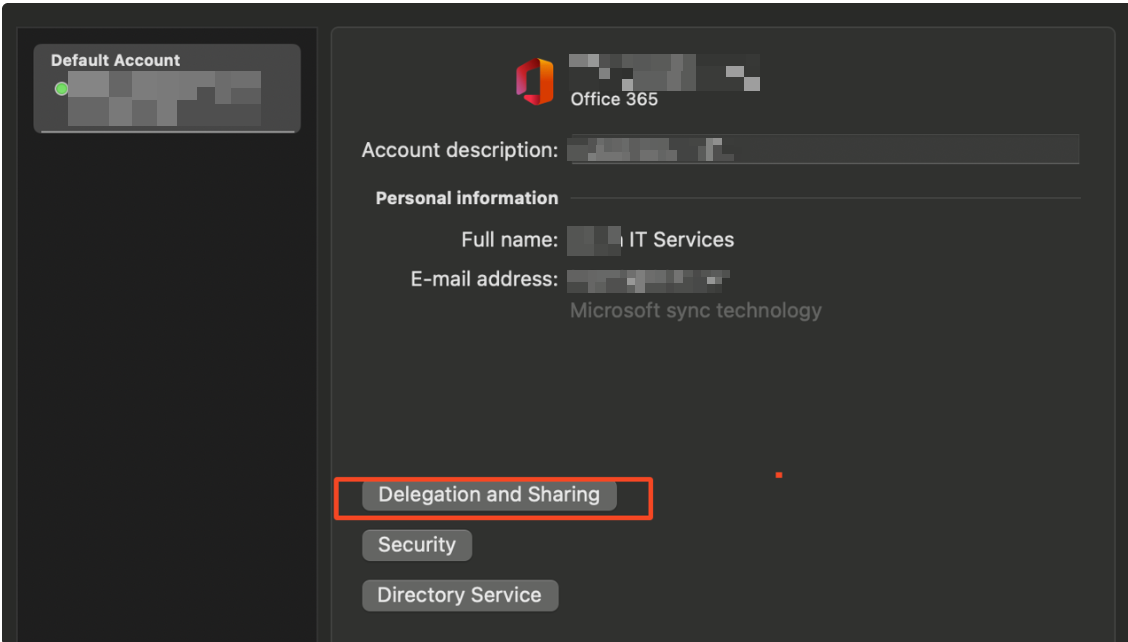
Under your account, select “Delegation and Sharing”
|
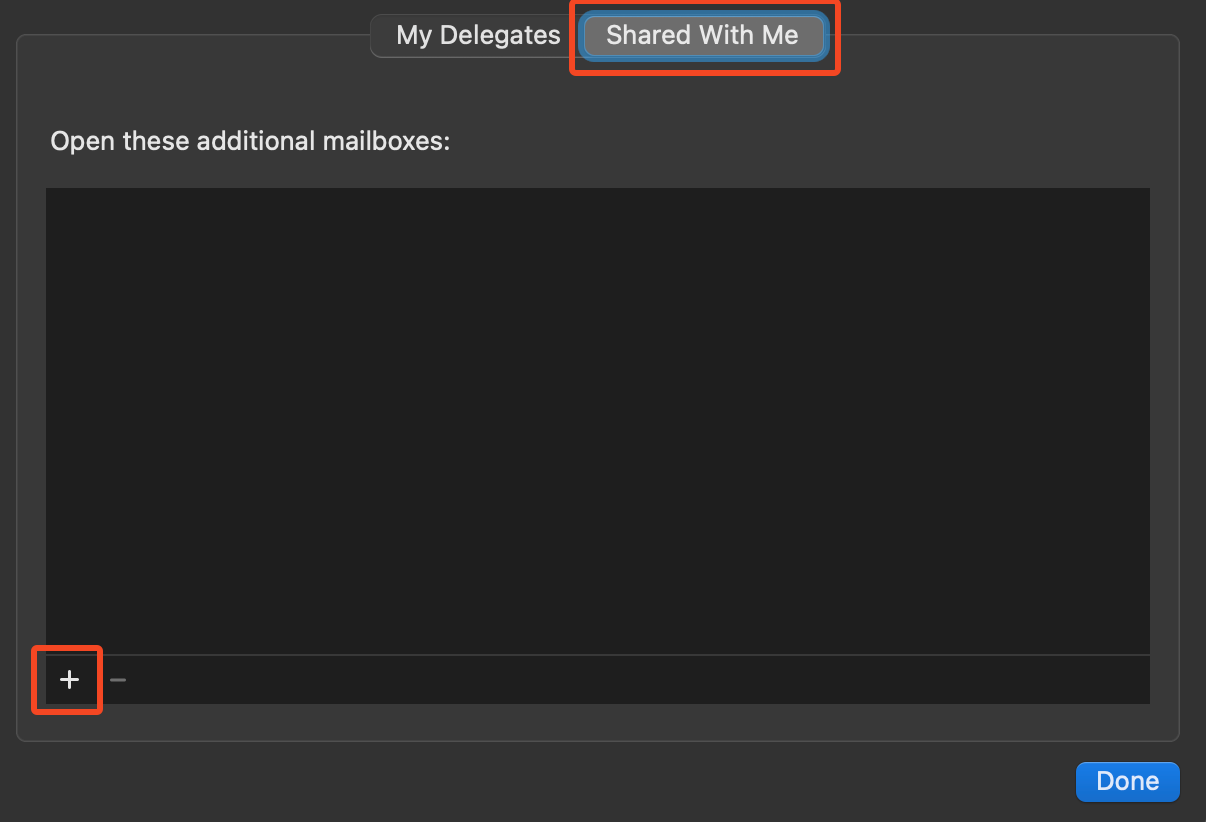
Under “Shared with Me” - click the '+' in the bottom of the window Add the resources email to the pop up, and hit “Done” when complete. You should now see the additional mailbox or calendars available for you in your Outlook app. To remove a shared folder, follow the instructions above, except use the ‘-' icon instead of '+' to remove. |
|
Open another mailbox (Separate from your own)
This section outlines the steps required to open another inbox you have access to, in a new tab (separate from your own outlook account)
Outlook Web App
Select the icon with your initials in the top right of the webpage → Select “Open another mailbox”
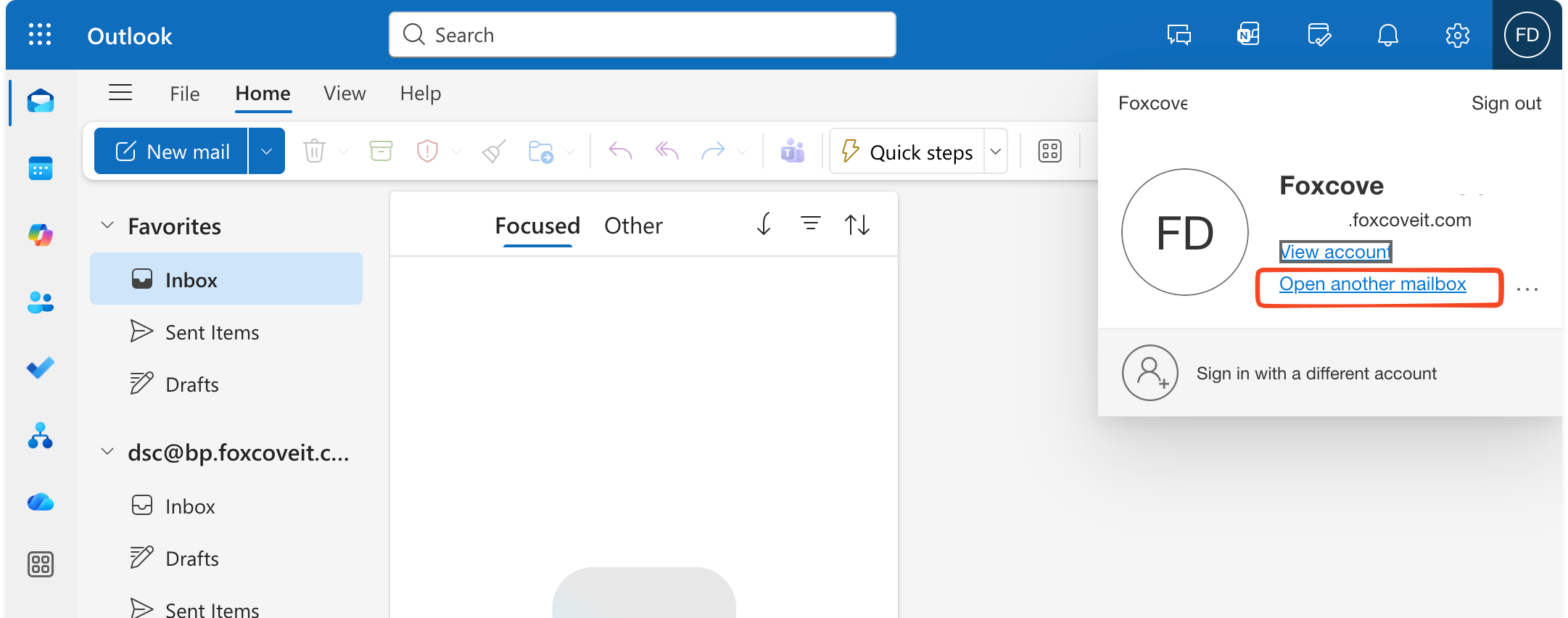
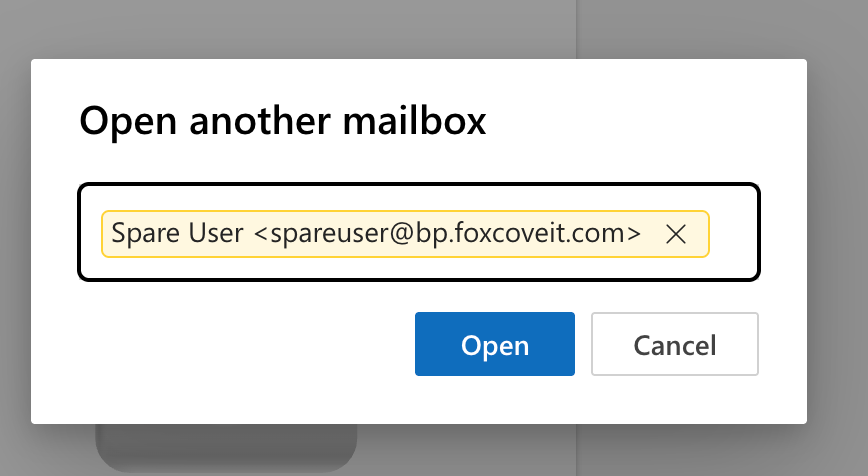
Input the resource or user’s email address, select the option that pops up, and select open
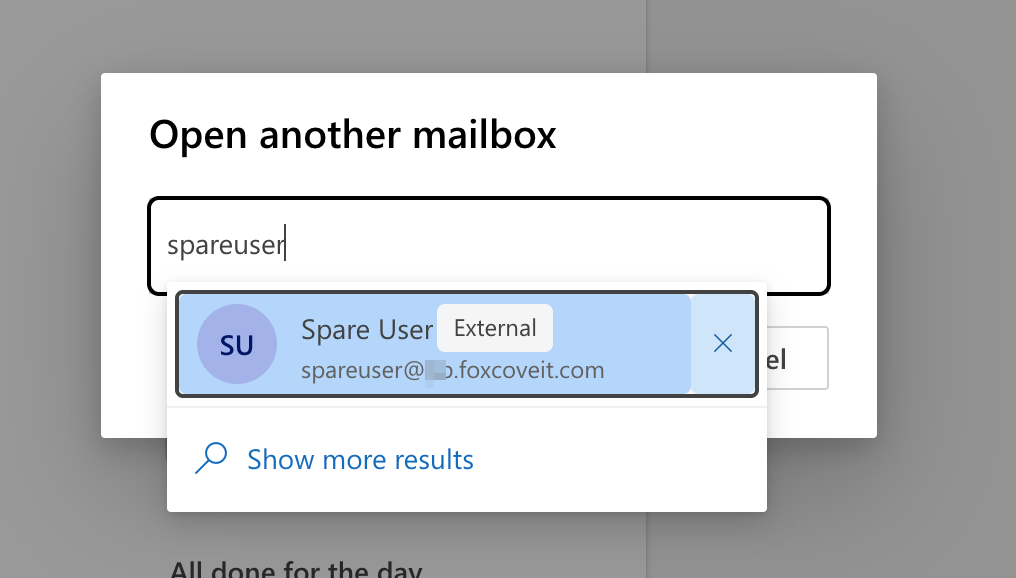
You’ll now see a new browser tab open with the URL: https://outlook.office.com/mail/emailaddress.com - where emailaddress.com is the mailbox address of the resource you’re accessing.