
PowerPoint
How to Create a new Powerpoint Presentation using Company Deployed Template
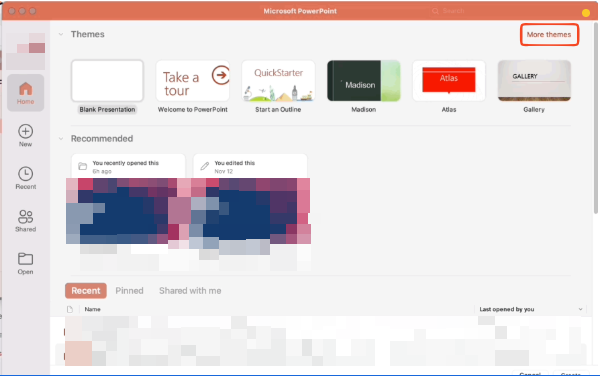
From http://office.com or the PowerPoint App on your desktop, navigate to the home screen – where you'll see templates or themes available for use.
In the desktop app, you'll click the "More Themes" button at the top right
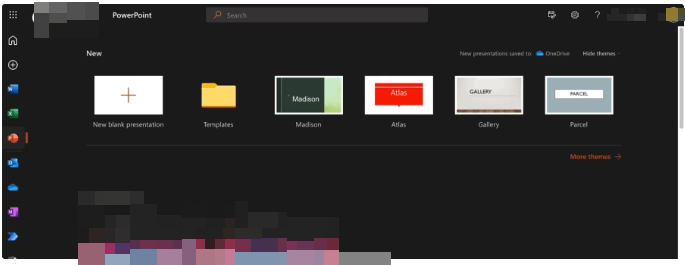
In the Powerpoint Online Web App, you'll notice next to the "New Document" button, is a folder called "Templates"
Double click the folder, and select the template you'd like to work on, and you're set!
One Drive / Sharepoint
More best practices found here
What's the difference between SharePoint and OneDrive?
OneDrive is the files experience for Microsoft 365 and SharePoint Server*, giving you access to all your work or school files, including the files that people share with you directly or through the teams you're working on. OneDrive provides a consistent, intuitive files experience across all your devices, including web, mobile, and the desktop of your Windows PC or Mac.
Behind the scenes, SharePoint in Microsoft 365 provides the content services for all files in Microsoft 365, including files you work with in Teams, Yammer, and Outlook. SharePoint is always there, helping manage and protect your files, and powering content collaboration across Microsoft 365. And beyond files, SharePoint enables portals, news, pages, lists, and a platform for business apps.
With both OneDrive and SharePoint in Microsoft 365, your files are stored in the cloud. You can sync either OneDrive or SharePoint files to your computer. See Sync OneDrive files or sync SharePoint files for more info.
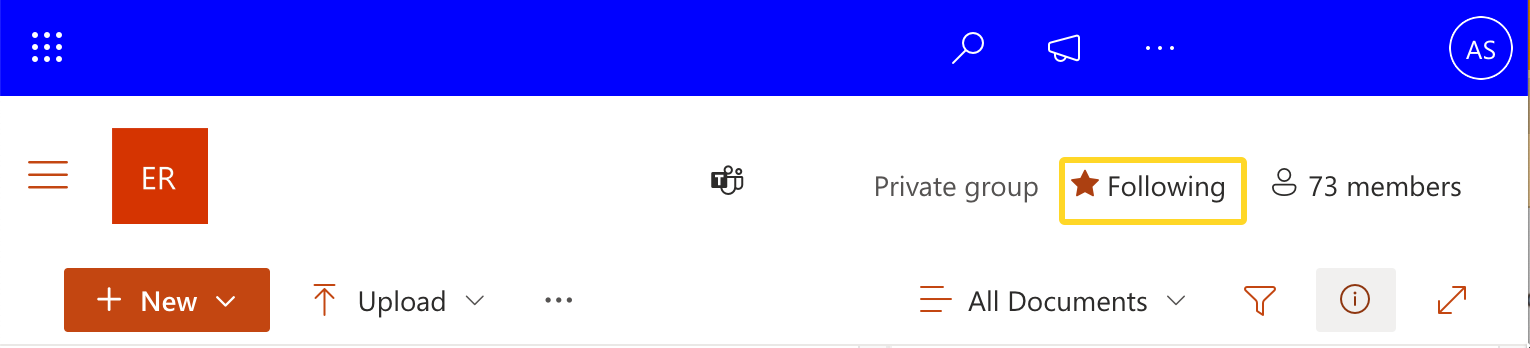
How can i quickly access a Sharepoint site?
Can I download Sharepoint on my Mac/PC?
Technically, no. But you can download OneDrive. OneDrive will be the application you use to open Sharepoint and OneDrive files. SharePoint is basically the Business version of OneDrive, but your computer (Windows or Mac) uses the "OneDrive-App" as the program that syncs files between your computer and the Microsoft Cloud.
Should I save files to OneDrive or Sharepoint?
If you're working on a file by yourself, save it to OneDrive. Your OneDrive files are private unless you share them with others, which is particularly useful if you haven't created a team yet.
If you're already working as a team — in Microsoft Teams, SharePoint, or Outlook—you should save your files where your team works, because OneDrive for work or school connects you to all your shared libraries, too.
When you need a new shared location to store team files, create a shared library right from OneDrive, add members, and start working together. These libraries are accessible within Teams, SharePoint, and Outlook. And it's easy to copy or move files where you and others need them.
{+}https://support.microsoft.com/en-us/office/should-i-save-files-to-onedrive-or-sharepoint-d18d21a0-1f9f-4f6c-ac45-d52afa0a4a2e+
How do I access Sharepoint Folders/Files on my computer? Sync or Shortcut
Download the OneDrive App if it is not already downloaded on your computer
-
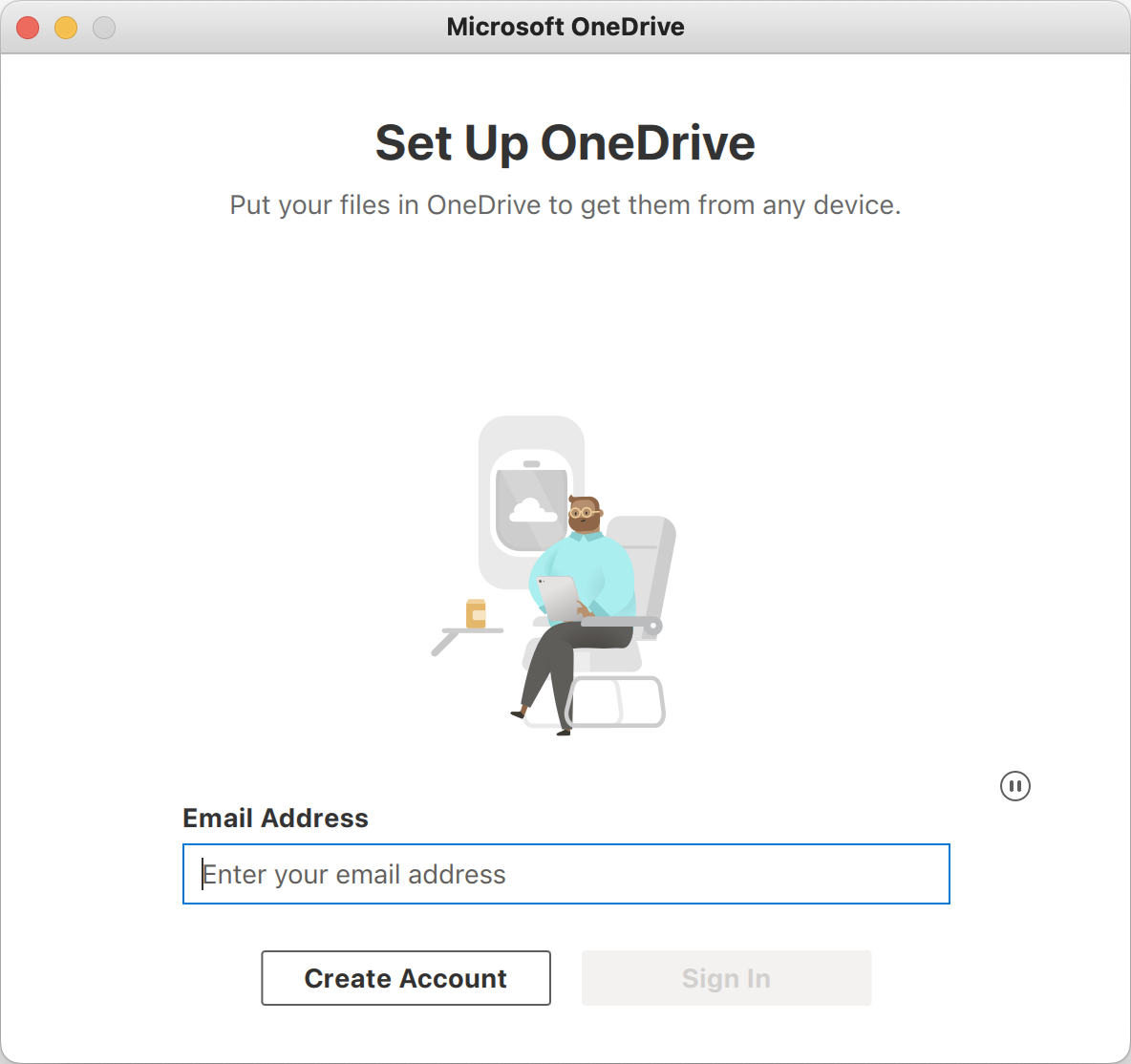
Open the OneDrive App and sign into your Microsoft Office 365 Account
-
-
Select the location where you want to store and access your OneDrive Files and Folders
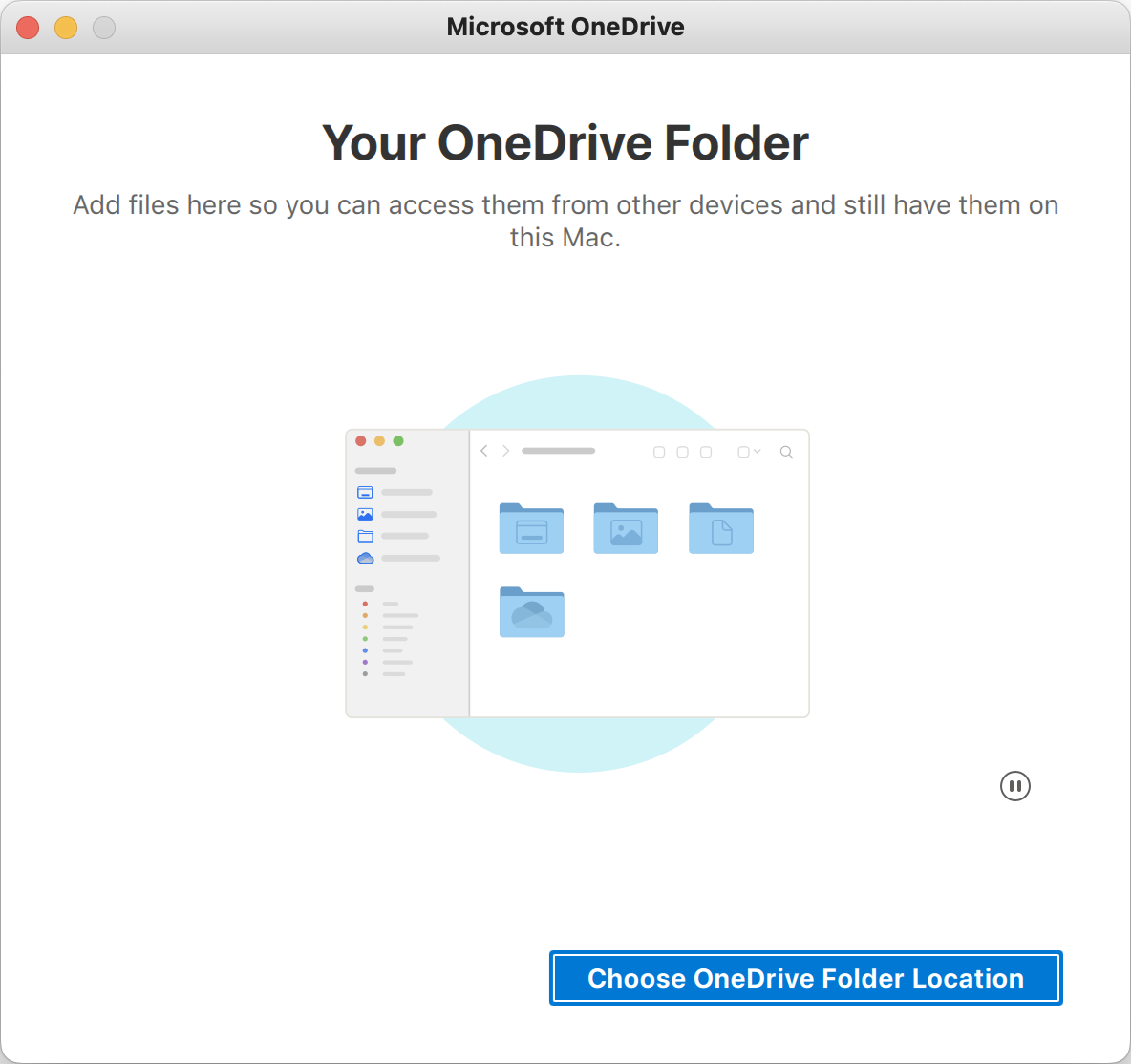
All of the files and folders you sync to your "OneDrive" from Sharepoint online will live in this folder.
-
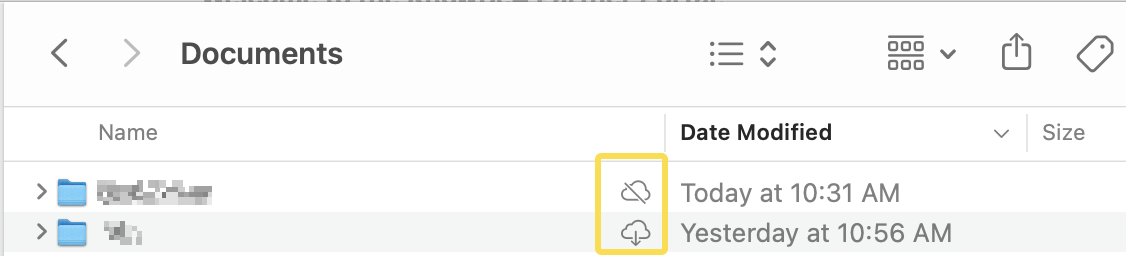
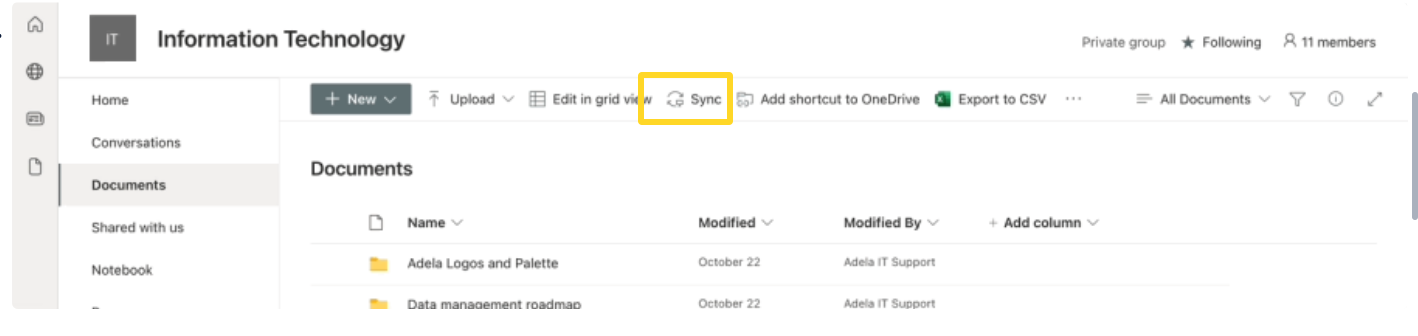
This also includes any shortcuts to Shared Libraries that you add from Sharepoint sites. You can sync folders between Sharepoint and OneDrive to your local computer by clicking “Sync” on the folder(s) you want to access locally.
-
How to add shortcut to OneDrive
-
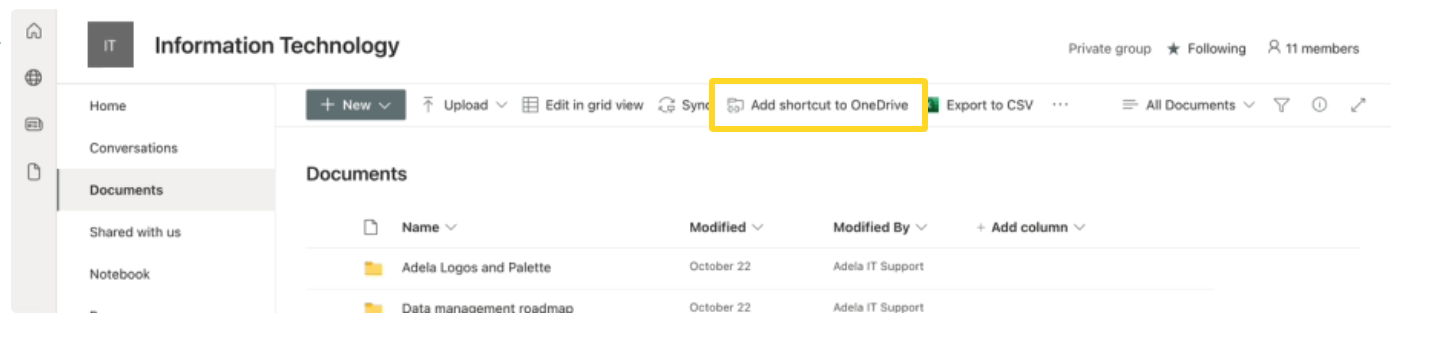
In your computer browser (Microsoft Edge, Google Chrome, Safari, etc.), navigate to the SharePoint site you would like to access in your OneDrive App on your computer.
-
At the top of the webpage, click the button that says "Add shortcut to OneDrive"
-
It is not recommended to use both shortcut and sync options as this can lead to issues with documents syncing.
-
-
Which is the best way to access my files?
There is no "one best way" you should access your files, but Foxcove recommends using one centralized location to access your files to avoid confusion.
ie. accessing your files from your File Explorer (PC) or Finder (Mac) using the OneDrive desktop app OR using the browser-based OneDrive solution, but not at the same time as the windows can look similar, and cause user confusion.
How do I know if one drive is syncing or not?
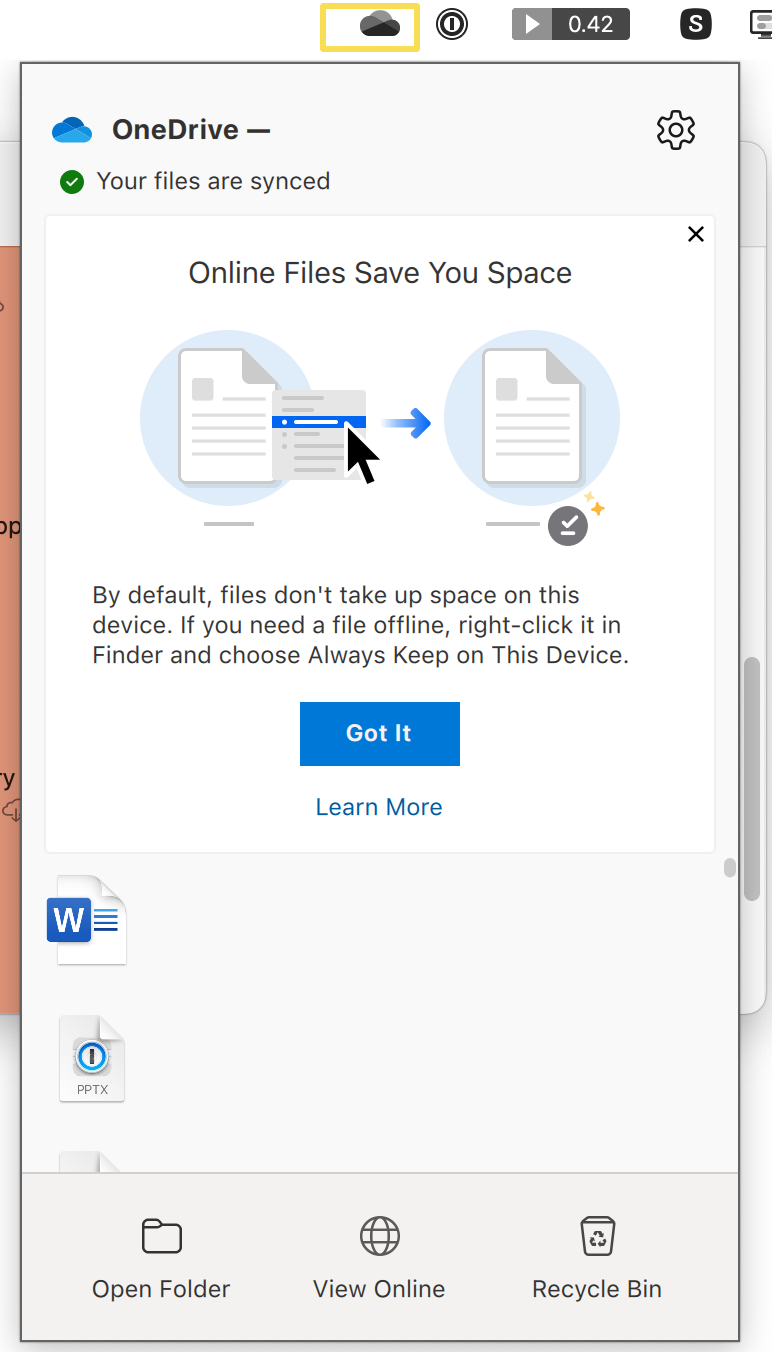
Your OneDrive files will appear in File Explorer in the OneDrive folder. If you use more than one account, your personal files appear under OneDrive – Personal and your work or school files appear under OneDrive - Company Name.
You now have a new white or blue cloud icon (or both) in your notification area and your files are synced to your computer. Your blue cloud icon will appear as OneDrive – Company Name when you hover over the icon.
How to choose which folders are syncing to OneDrive?
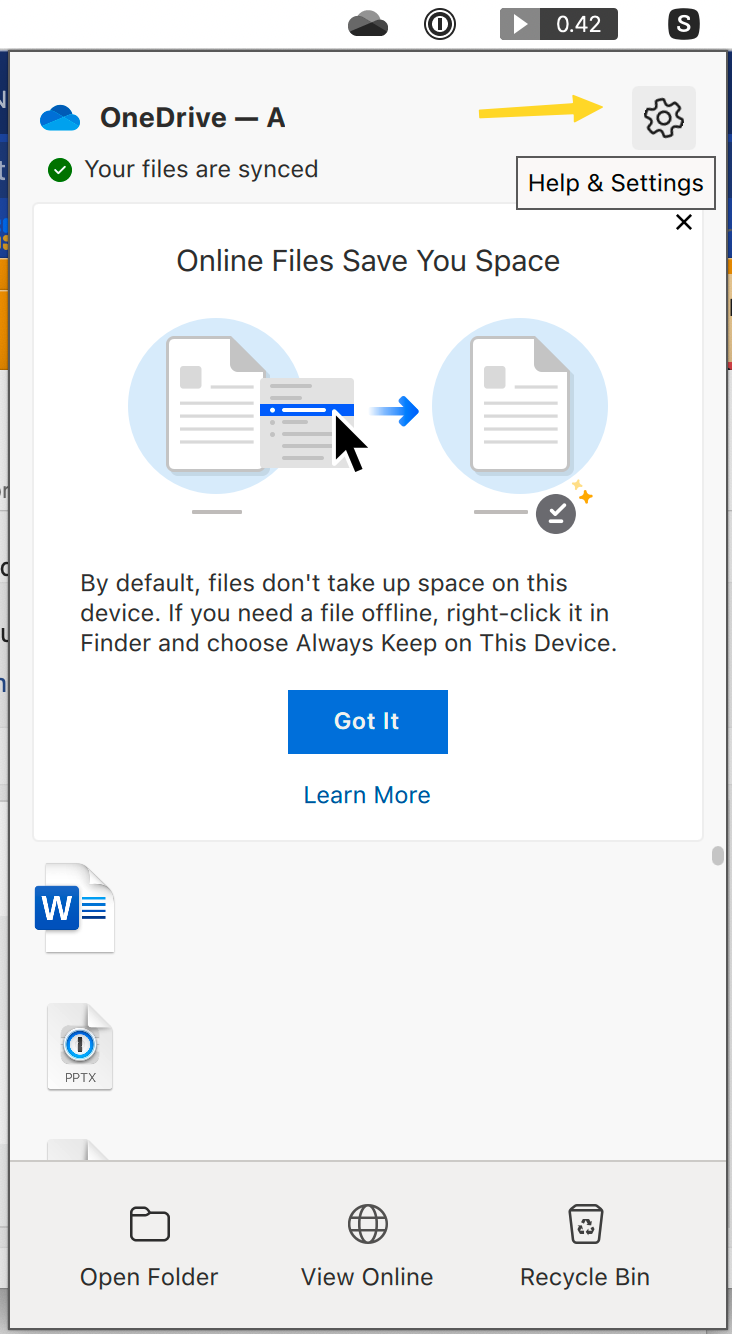
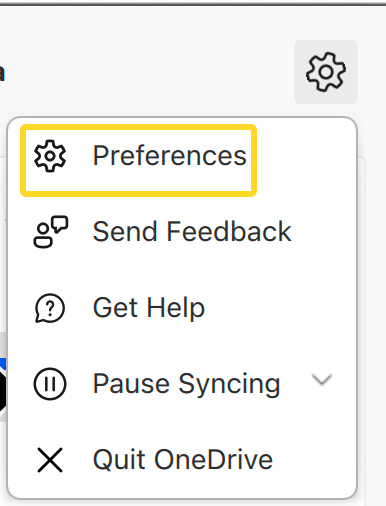
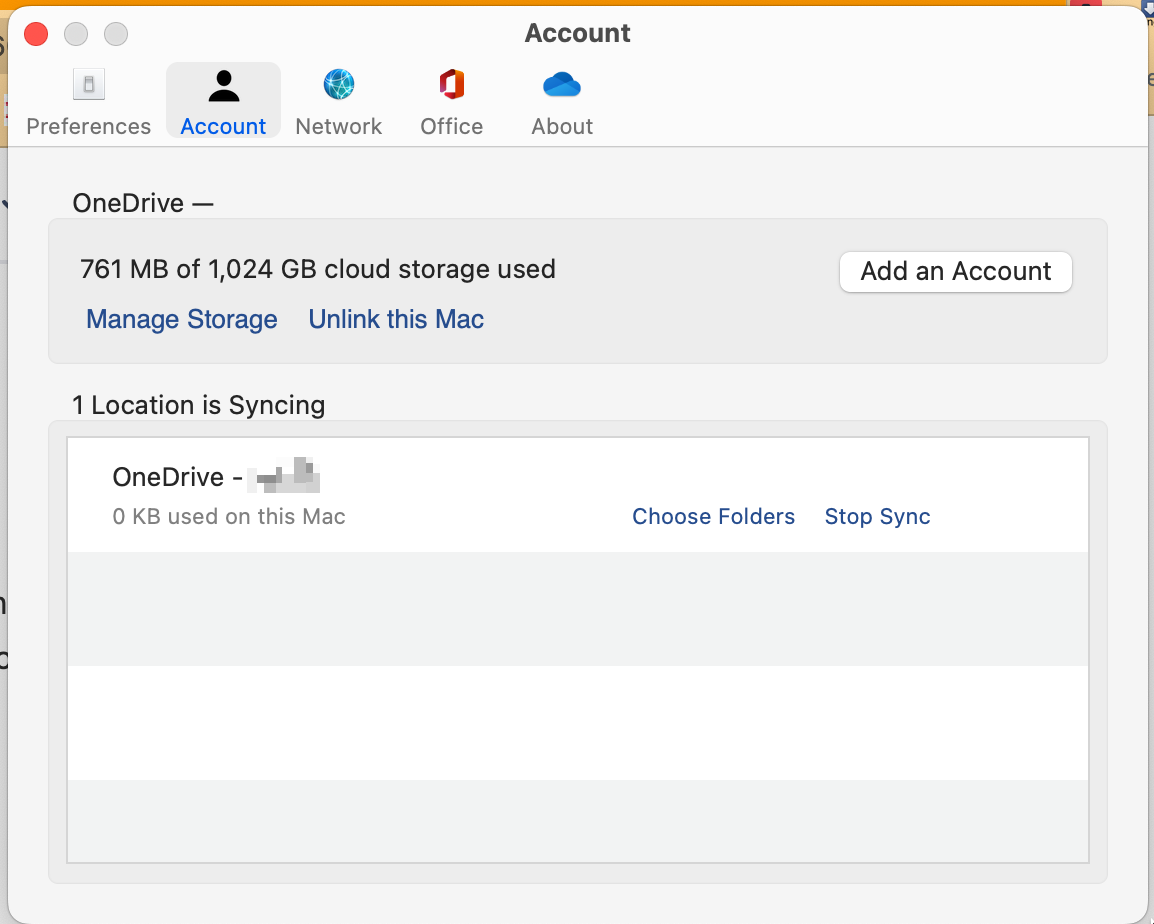
Any time you want to change the folders you sync on your computer, right-click that cloud icon in the taskbar notification area, and select Preferences > Settings > Account > Choose folders. Find other information about your account and change other OneDrive settings from here.
On a Mac, you will find this setting in the top menu bar instead of the bottom.
Outlook
How to add signature to new emails/add signature to outlook app
In the Outlook App, navigate to your Outlook Preferences
-
On a Mac, you can open the Outlook Mail app, by pressing the following keys on your keyboard: ⌘ + , (Command and Comma) to open your app preferences.
-
Under Email, select Signatures.
-
-
-
Click "Edit"
-
-
In the Signature editor, type the text that you want to include in your signature. You can:
-
Apply formatting such as font, font style, font size, font color, or highlighting. Select the text before applying any formatting.
-
Add photo, logo or picture to your signature by inserting Pictures from Photo Browser or Picture from file
-
-
After you are done creating your signature, close the editor window.
-
Select whether you'd like your signature to appear on every message, or just on new messages
-
-
Close the Signatures window.
How to open a shared mailbox/Calendar
Outlook Web
If you want to monitor the email from your primary mailbox and the shared mailbox at the same time, use this method. After you complete this task, the shared mailbox and its folders are displayed in the left navigation pane each time you open Outlook on the web.
-
Sign in to your account in Outlook on the web.
-
Right-click Folders in the left navigation pane, and then choose Add shared folder. For Exchange on-premises mailboxes, right-click the name of your primary mailbox (such as John Smith) in the left navigation pane, and then choose Add shared folder.
-
-
In the Add shared folder dialog box, type the name or email address of someone who has shared a mailbox with you, and then click Add. Or, type the name of the shared mailbox you are a member of, such as legal@xyz.com.
-
-
The shared mailbox displays in your Folder list in Outlook on the web. You can expand or collapse the shared mailbox folders as you can with your primary mailbox. You also can remove the shared mailbox from your Folder list. To remove it, right-click the shared mailbox, and then click Remove shared folder.
-
Outlook App
You should see the shared mailboxes you have been granted access to automatically after quitting out of Outlook and re-opening the app.
If you do not see the shared mailboxes, manually add them:
-
Open Outlook.
-
Choose the File tab in the ribbon.
-
Choose Account Settings, then select Account Settings from the menu.
-
Select the Email tab.
-
Make sure the correct account is highlighted, then choose Change.
-
Choose More Settings > Advanced > Add.
-
Type the shared email address, such as legal@mycompany.com.
-
Choose OK > OK.
-
Choose Next > Finish > Close.
Send mail from the shared mailbox
-
Open Outlook.
-
Choose New Email.
-
If you don't see the From field at the top of your message, choose Options > From.
-
Click From in the message, and change to the shared email address. If you don't see your shared email address, choose Other email address and then type in the shared email address.
-
Choose OK.
-
Finish typing your message and then choose Send.
From now on when you want to send a message from your shared mailbox, the address will be available in your From drop down list.
Whenever you send a message from your shared mailbox, your recipients will only see the shared email address in the message.
Viewing contacts (People) in Outlook
-
In Outlook, choose People at the bottom of the screen.
-
-
By default, you see your personal contacts. To view other address books, in the Find group of the ribbon, choose Address Book.
-
Use the drop-down list under Address Book to see all of the different address books and contacts lists in your organization.