
This article outlines steps needed to set up secure Multi-Factor Authentication (MFA) in Microsoft 365.
Setting up Microsoft Authentication
-
Navigate to aka.ms/proofup
-
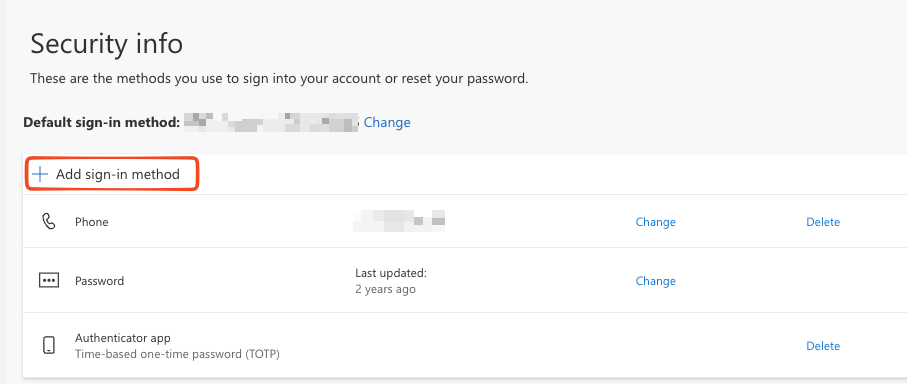
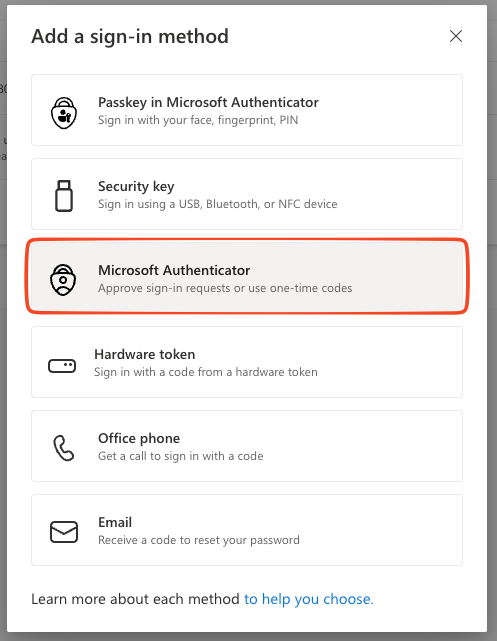
Under Security Info - add sign in method →Select Microsoft Authenticator
|
|
-
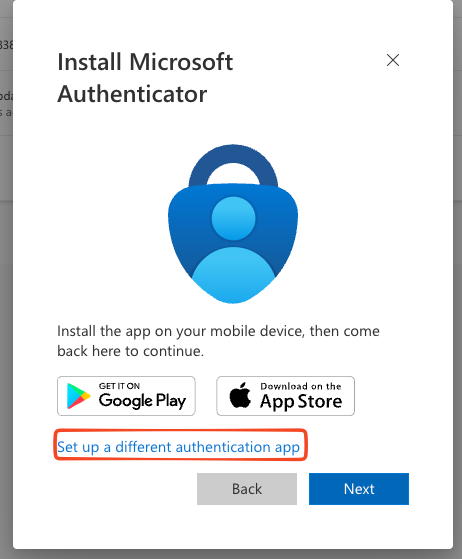
If you want to select an authenticator app that is not Microsoft Authenticator, select “Set up a different authentication app”
-
Using your authentication app (1Password, Google Authenticator, etc.) scan the QR code on the screen to begin setup and follow the steps onscreen to finish setting up MFA.
-
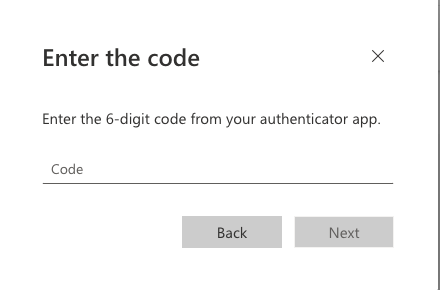
Input the authentication code generated by your app
-
Going forward, when you sign in to your account for the first time in a browser or device, you will be prompted to input this code