
This article outlines the steps to add or remove a calendar from your Google Calendar account
How to add a new Google Calendar
-
Navigate to calendar.google.com
-
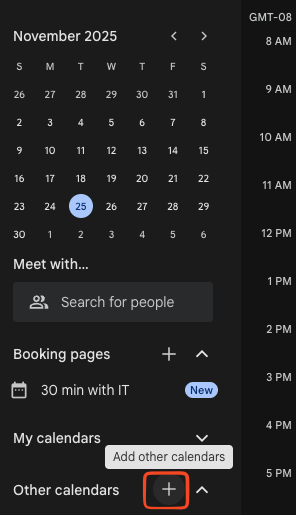
In your sidebar next to “Other Calendars” you should see a plus sign next to the dropdown
-
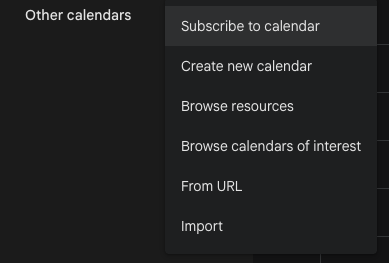
Select the plus and you will see a new pop up showing options for adding calendars to your sidebar
|
Options |
Description |
|---|---|
|
Subscribe to calendar |
In Google Calendar, you can subscribe to someone else's calendar if they share it with you. If someone hasn’t shared their calendar with you, you can ask for access to their primary calendar.
Tip: When someone shares their calendar with you, you get an email with a link to add their calendar. |
|
Create new calendar |
Set up a new calendar
Important: You can only create new calendars from a browser. After you create a calendar, you can find it on your browser and in the Calendar app.
Tips:
|
|
Browse resources |
Selecting Browse Resources will open the resources page in Google Calendar, allowing you to select in bulk which calendar resources you’d like to have listed in your sidebar 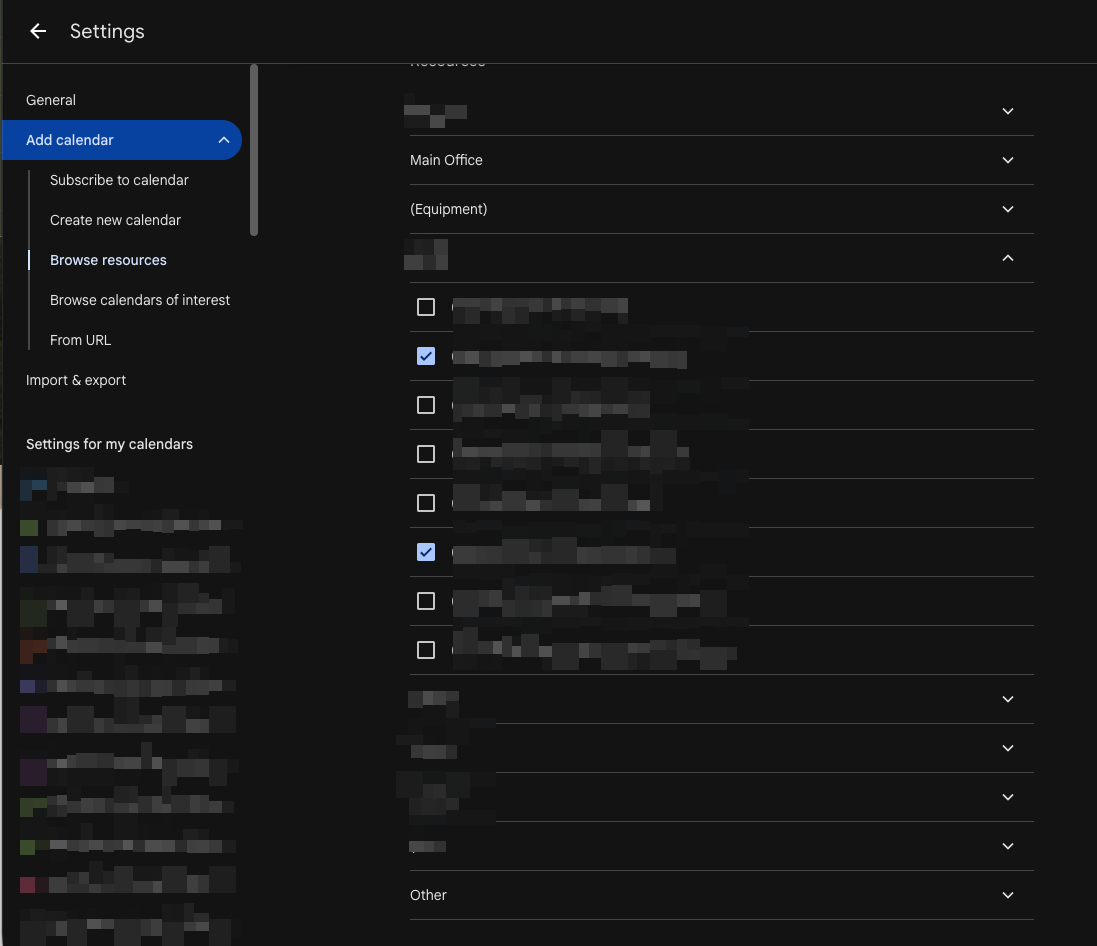
|
|
Browse calendars of interest |
Calendars of interest include holidays, sports, phases of the moon 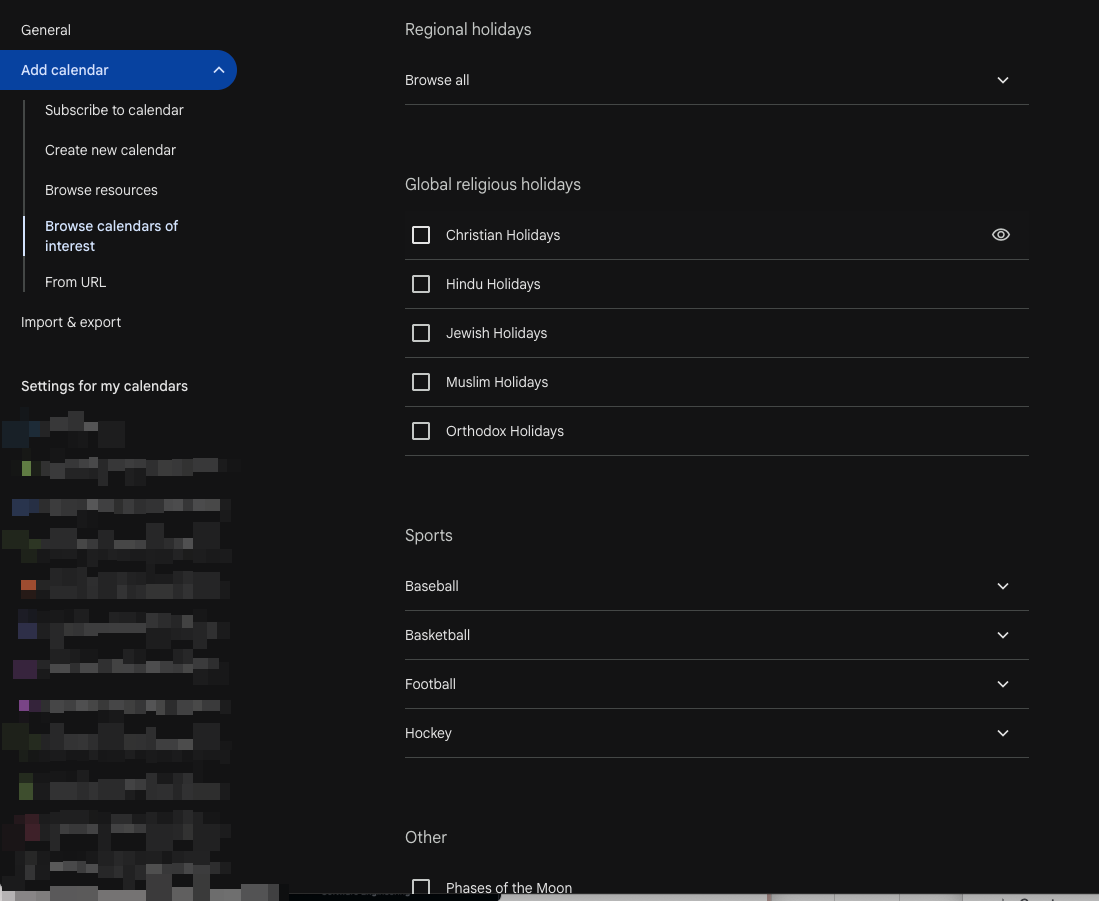
|
|
From URL |
If an iCal address link is shared with you, you can add the calendar via. URL 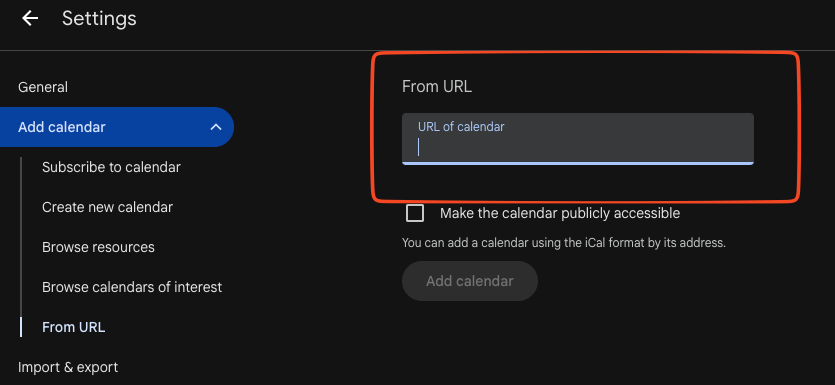
|
|
Import |
You can import events from an export (ICS/VCS or CSV) formatted file to import events to any calendar you manage 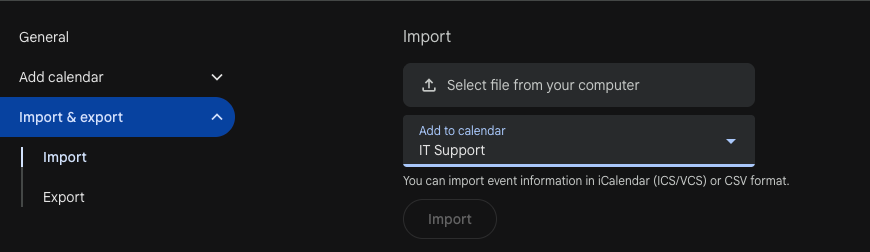
|
|
Export |
You can choose to export events on your calendars |

How to remove a Google Calendar from your sidebar
-
To remove a Google Calendar, in the sidebar of your Calendar app, locate the calendar you want to remove
-
Hover over the name - towards the right side you will see an X and
-
Select the X to unsubscribe and the calendar will be removed from your sidebar
If you have access to the calendar, you can re-add using the methods above. Or request the owner to re-share the calendar with you.