
This article outlines the steps to share a google calendar that you own, or to remove access.
Share your calendar with other people or groups
-
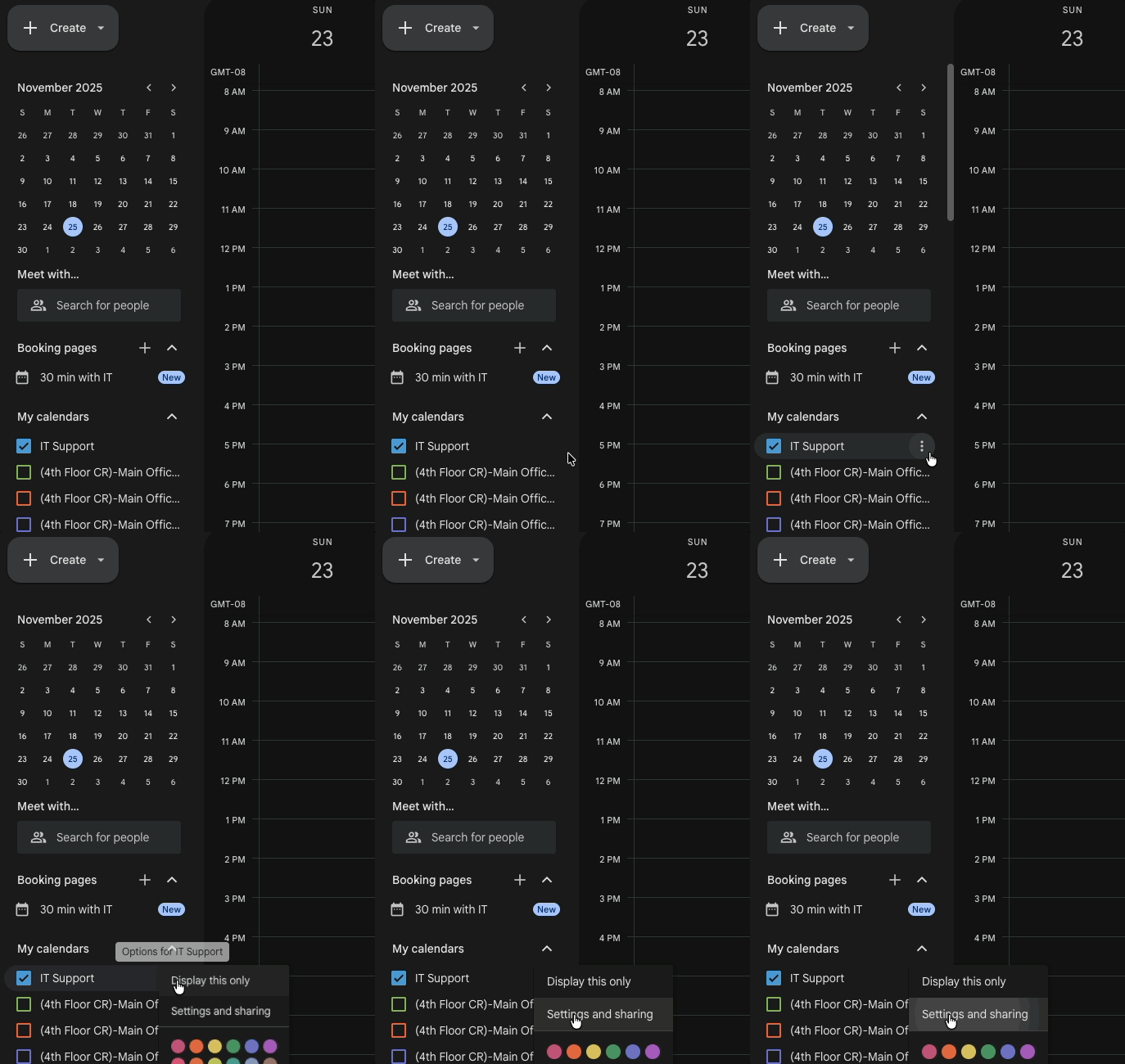
From calendar.google.com, find your calendar in the side bar
-
Look for the 3 dots that appear next to your calendar name, click and select “Settings and Sharing”
-
-
To share your calendar with specific people or groups, scroll down to “Shared With” section and select “Add people and Groups”
-
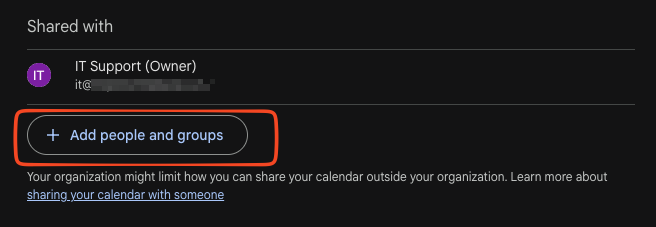
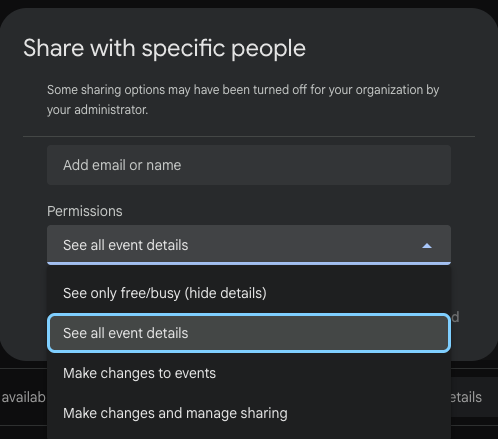
You will be able to set the type of permission they have to your calendar
-
Make Changes and Mange Sharing - Owner
-
Provides manager access to the calendar. This role has all of the permissions of the writer role with the additional ability to modify access levels of other users.
-
-
Make changes to events - Manager
-
Lets the grantee read and write events on the calendar
-
-
See all event details - Viewer
-
Lets the grantee read events on the calendar.
-
-
See only free/busy (hide details)
-
Lets the grantee see whether the calendar is free or busy at a given time, but does not allow access to event details.
-
-
Share your calendar publicly or with an organization
-
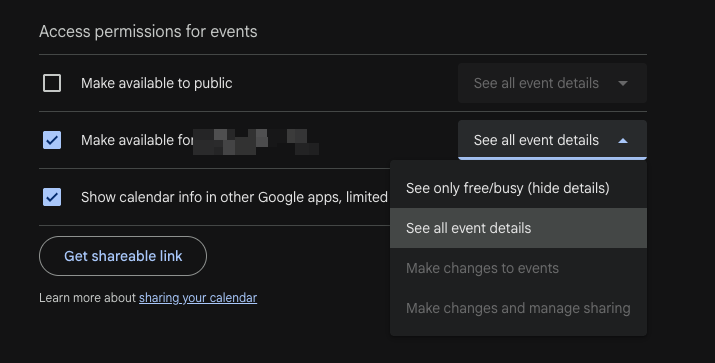
You can adjust whether the calendar is available to the public, to your organization (with free/busy or see all event details permissions)
-
If you’ve added an individual or group to access your calendar, they will receive an email invitation to add your calendar to their account to manage given whatever permissions you’ve granted.
How to remove access to a calendar
-
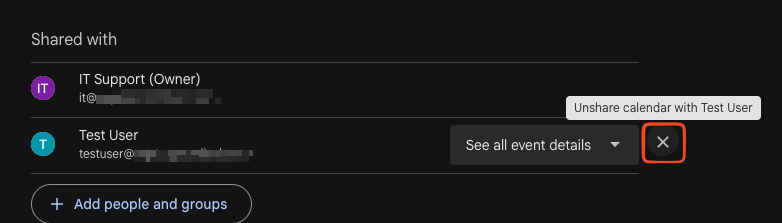
From the same settings and sharing section as above, you will be able to remove access to your calendar by scrolling to the “Shared with” section and selecting the 'X' next to their name
-
The user or group no longer has access to your calendar