
This article outlines the steps to manage calendars shared with you in your Outlook account.
Outlook Web App
-
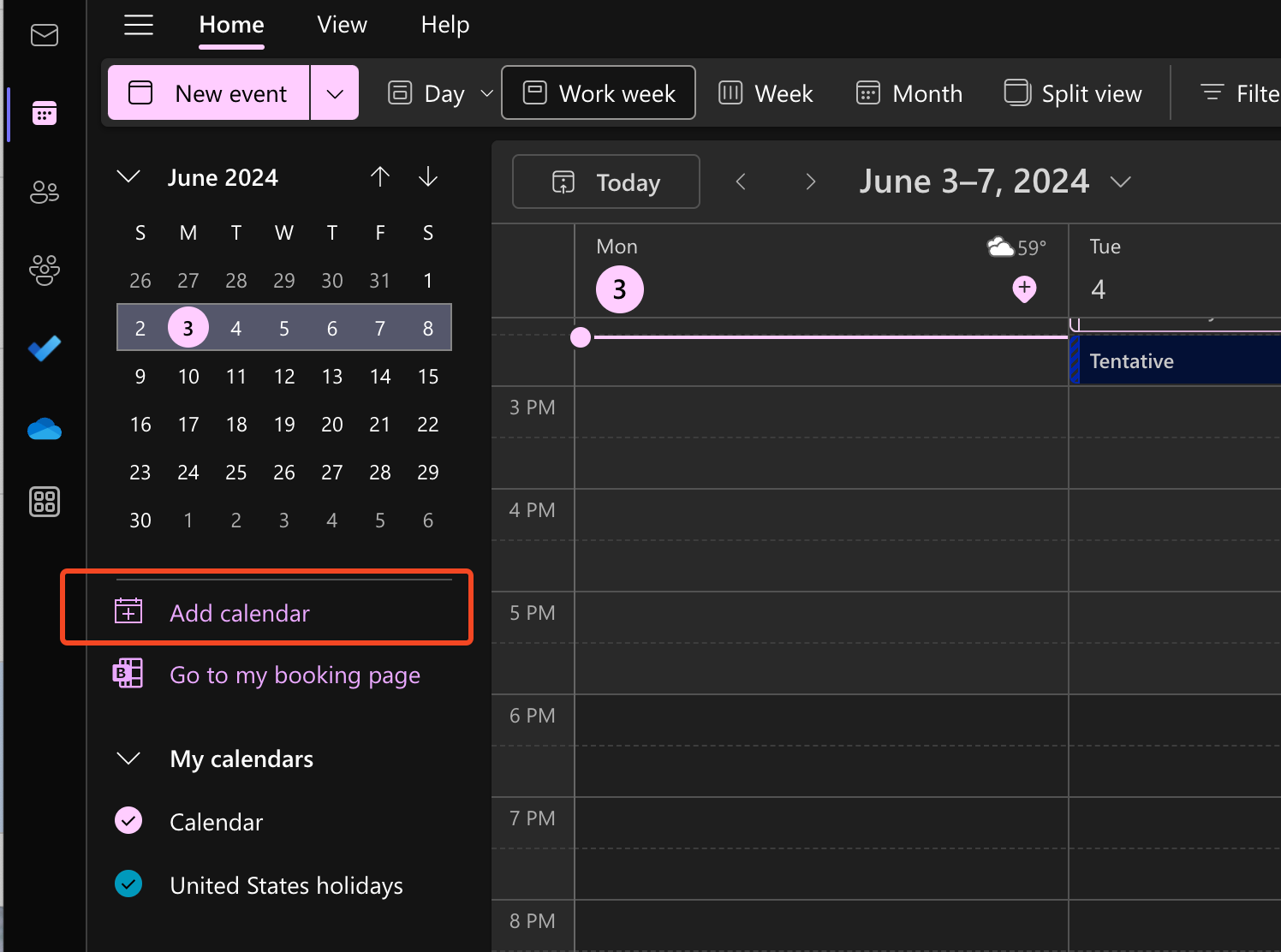
Open the calendar tab, and choose “Add calendar”
-
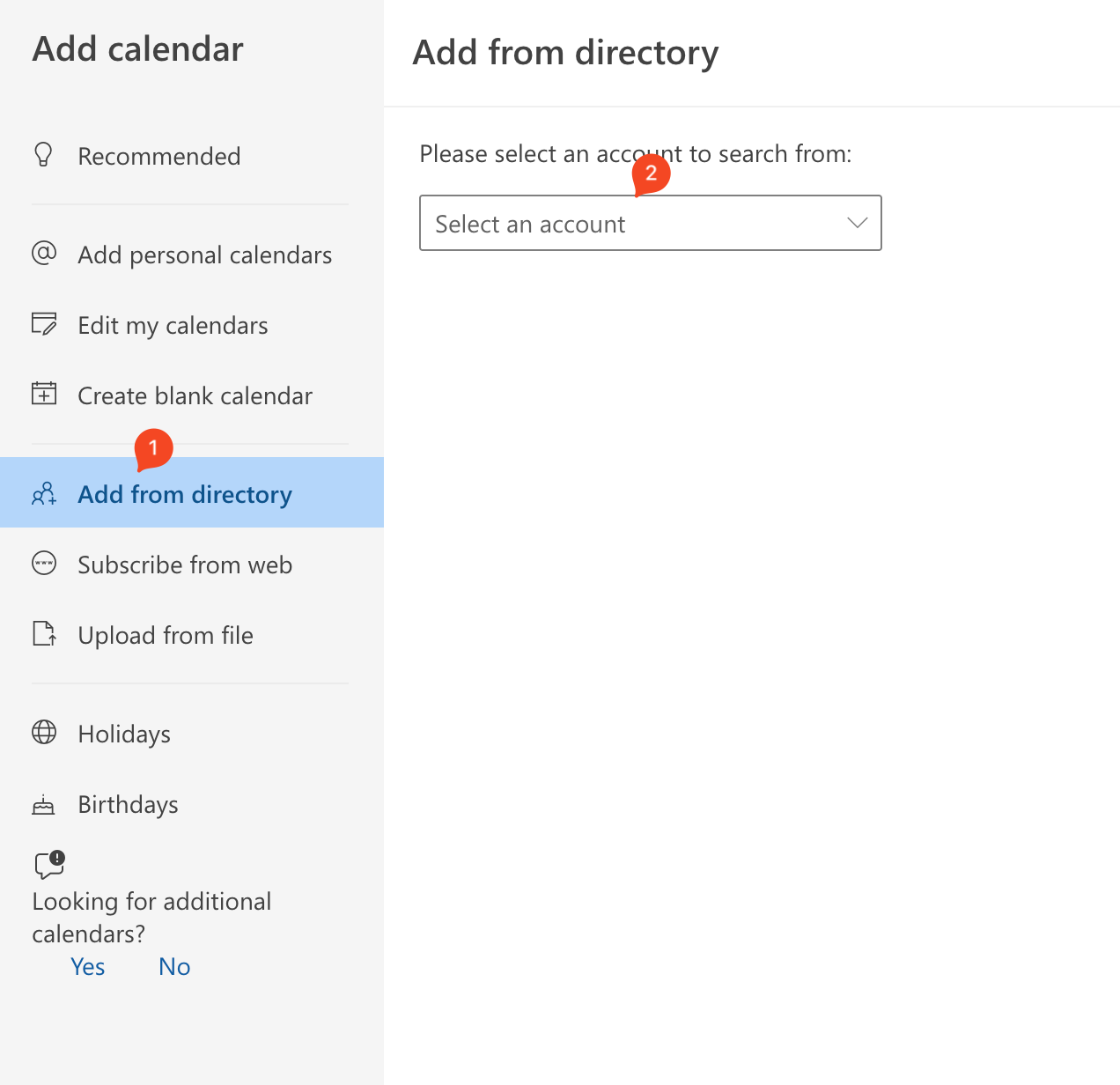
Select “add from directory” in the sidebar
-
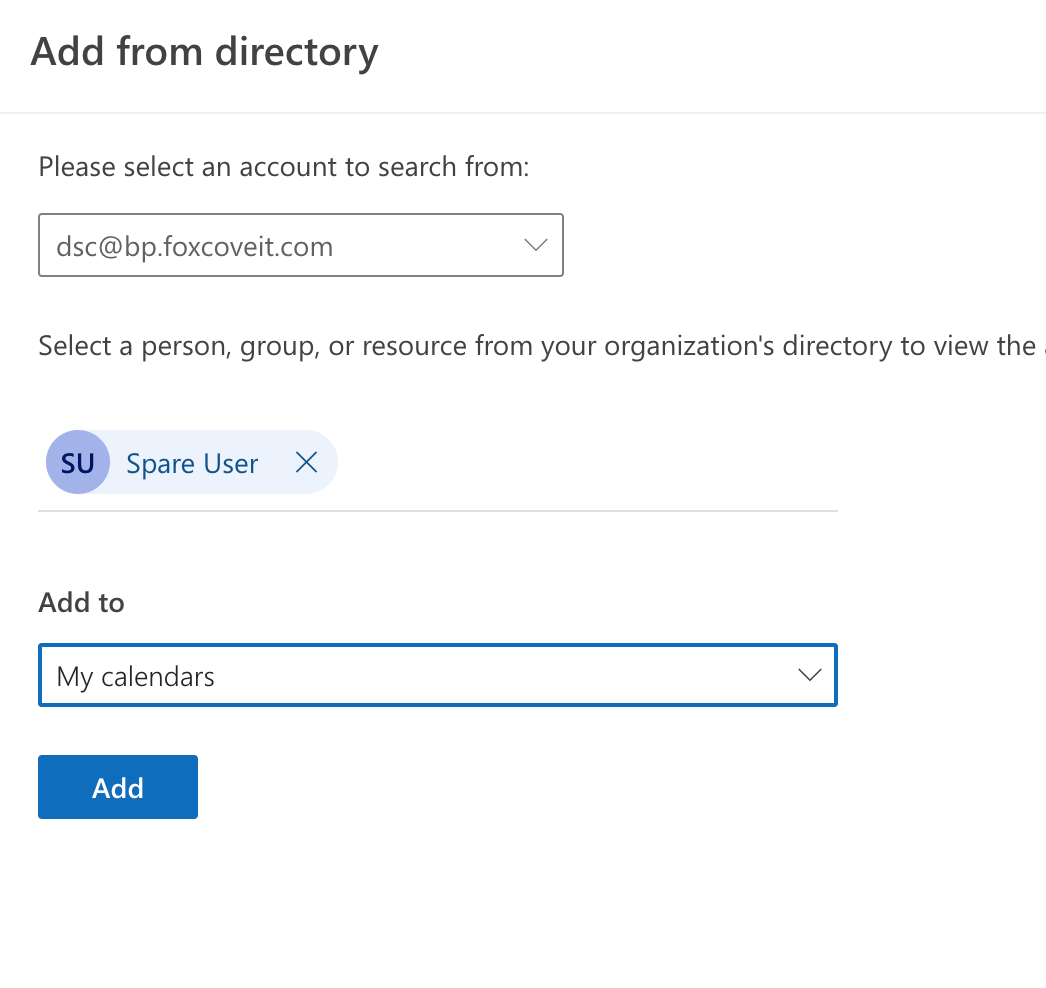
Select the account to search from (select your own account) > Type the name of the calendar email address you want to add > select the calendar folder to put their calendar in under “Add to” and choose “add”
-
You should now see the new calendar appear in your sidebar
Outlook for Mac
-
Open Outlook and select the Calendar Tab
-
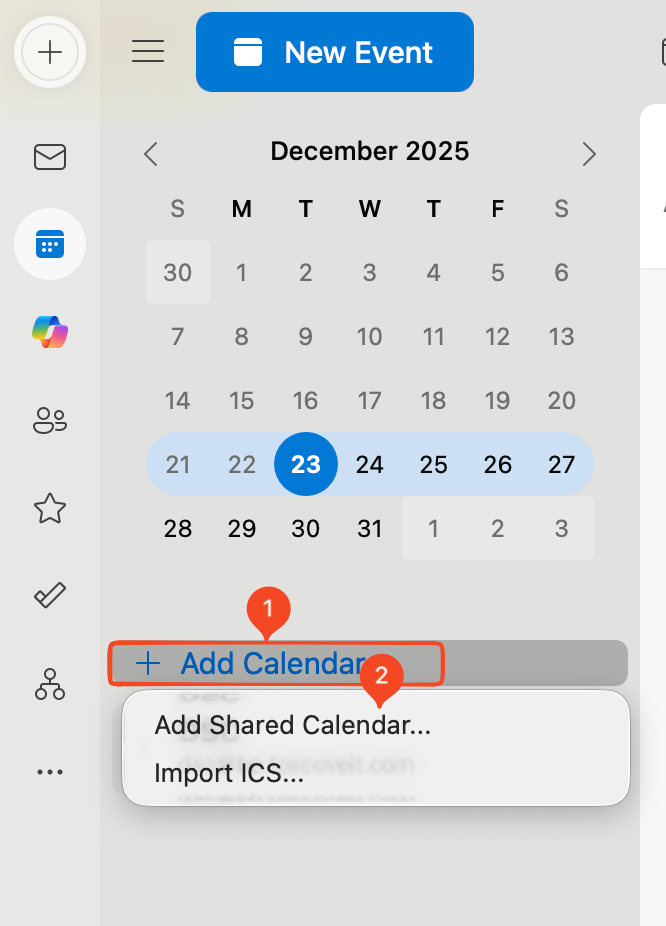
Click “Add Calendar” and select “Add Shared Calendar”
-
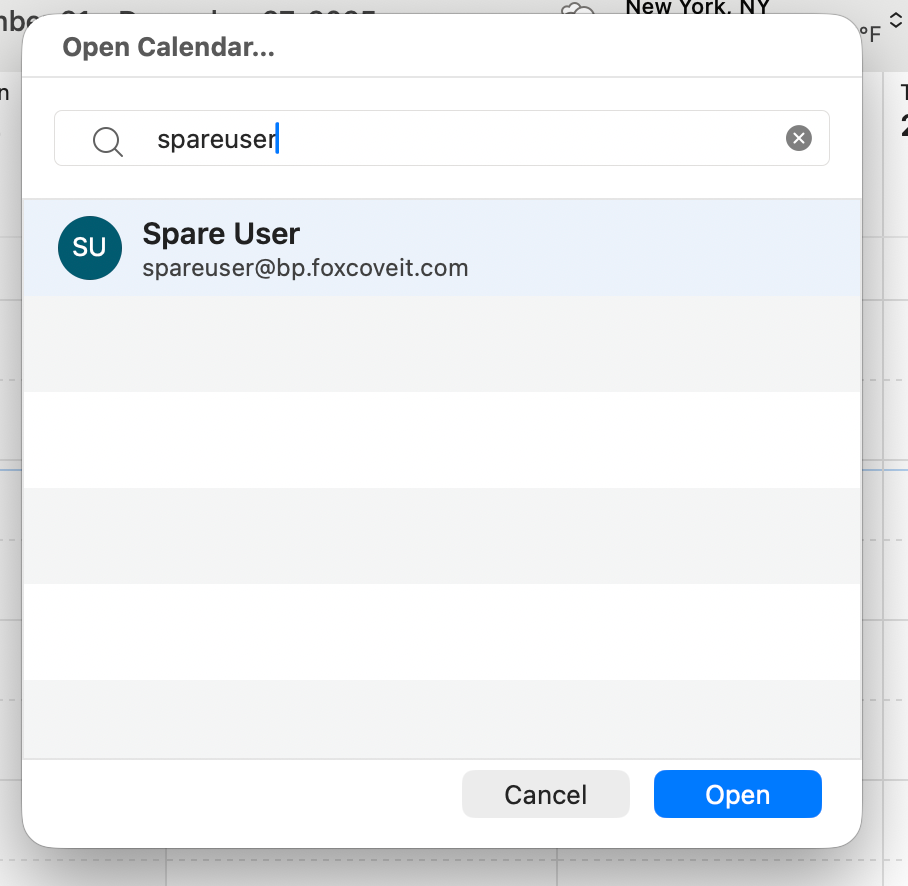
Search for the user whose calendar you want to add, and select “Open”
-
Outlook will check to ensure you have the proper permissions, and will add the calendar once completed

Outlook Classic - PC
On PC, once the user has been added to a Shared Mailbox or Calendar, the shared boxes should show up automatically. If it doesn’t show up, close and reopen the Outlook app, or contact your IT team for more assistance.
View a shared mailbox with Exchange granted permissions
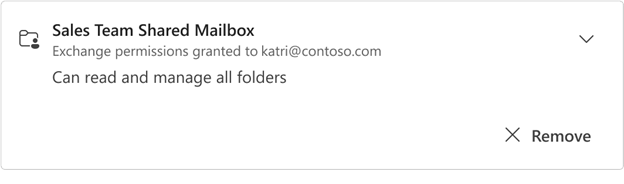
A shared mailbox with Exchange granted permissions appears on the card for that mailbox. When you expand this card, all the details for the permissions you were granted for the mailbox appears.
-
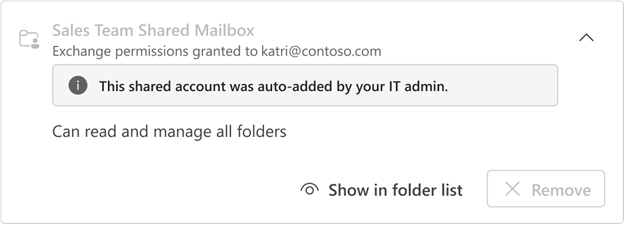
If the mailbox was auto-added (automapped) by your IT admin you won't have the ability to remove it. Instead, a notice appears that the mailbox was automatically added by your IT admin.
-
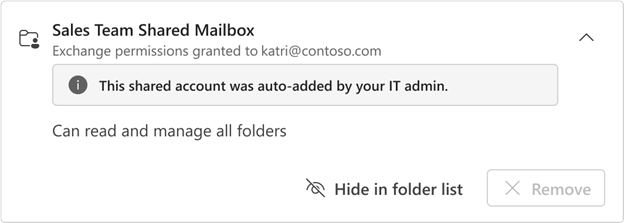
To hide these mailboxes in the folder list select Hide in folder list. If you choose to do this, the mailbox disappears from your folder list. To re-add it, select Show in folder list:
-
If the mailbox wasn't auto-added (automapped) by your IT admin, you can select the option to Remove it.